
How to write prompts that produce better AI diagrams
How to write prompts for better AI diagrams: name the actors, the start and end, the exceptions and the kind of diagram, add source material, then iterate.
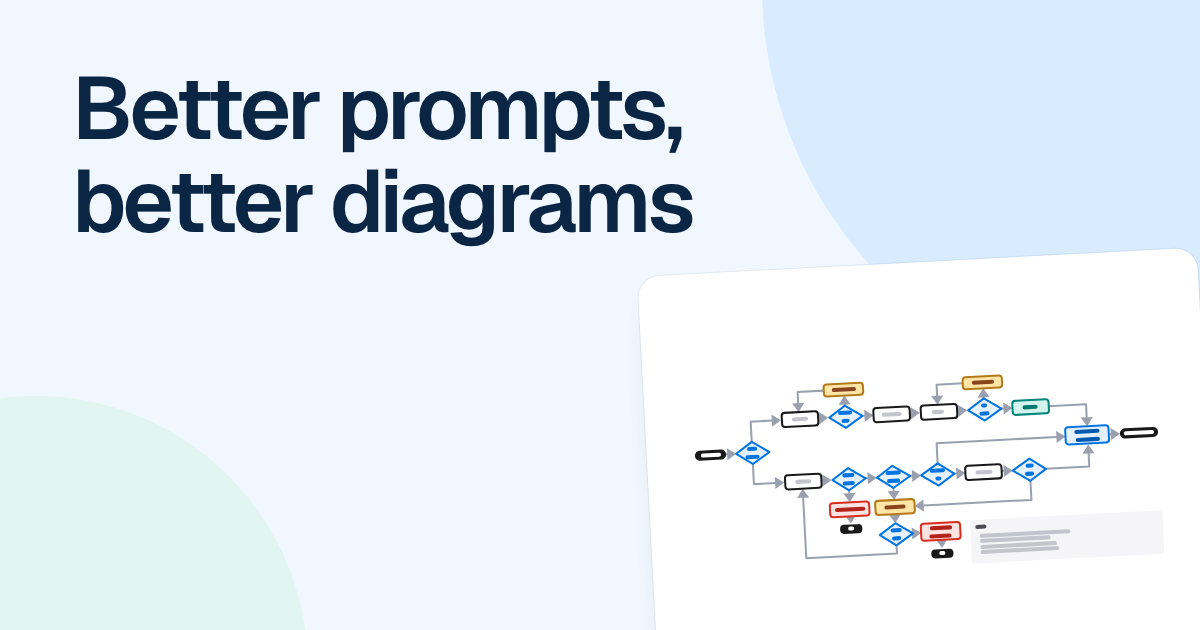
A vague prompt gets you a tidy diagram of somebody else’s process. Better AI diagrams come from prompts that say who is involved, where the process starts and stops, and what goes wrong along the way.
Quick AnswerTo write better prompts for AI diagrams, name the actors, the start and end, the exceptions and the kind of diagram. Give source material when you have it. Then change the draft with small, specific follow-ups rather than rewriting one long prompt, and check the result each time.
Why a short prompt draws the wrong process
Given only a topic, an AI has nothing to copy, so it draws what such a process usually looks like. FlowDraw’s AI works this way on purpose: ask for “our onboarding process” and you get a complete, detailed version full of reasonable guesses. Give it your own steps and it is told to draw those, in your order and your words, adding only Start and End.
So the prompt decides how much of the result is yours and how much is assumption. Take this one:
Draw our sign-up flow.
You get a plausible, complete-looking flow. Some of its steps won’t exist at your company, and the ones that matter to you may be missing. Here is the same prompt, built up a piece at a time.
Build an AI diagram prompt one piece at a time
Name the kind and the actors
Draw a swimlane of our sign-up flow. Lanes: visitor, web app, email service, support.
Now each step has someone doing it, and the handoffs show up. The kind sets the whole layout, so choose it on purpose.
On the FlowDraw AI page, the “Diagram” menu offers “Flowchart”, “Mind map”, “Org chart”, “Sequence”, “ER diagram”, “UML class” and “BPMN”, and what you pick there wins over your words. Swimlane isn’t on the menu, so leave it on “Auto” and ask in the prompt, as above. Ask AI has no menu, so there you always say it in words. ER, UML and BPMN need Pro.
Set the start and the end
It starts when a visitor clicks “Create account” on the pricing page. It ends when they open their first board, or when the verification link expires and they give up.
This keeps the draft inside the part you care about. Leave it out and marketing can creep in before the sign-up, or billing after it. Naming two endings also tells the AI that failure is a real outcome.
List the exceptions
Include these exceptions: the email is already registered, the verification link has expired, the email bounces. For each, show what the visitor sees next.
This line changes the most. Exceptions are what a model can’t guess about your product, and each one becomes a decision with labeled outcomes. We would write these before anything else, for the same reason we draw the unhappy path first.
Give it source material
Use the attached support runbook. Keep its step names.
Labels now come from your documents, so the diagram uses the words your team uses. FlowDraw AI and Ask AI take PNG, JPEG, WebP, GIF, SVG, PDF, Word (.docx), plain text and CSV, up to 5 files in a message. Save an older .doc file as .docx first. For a long text, Word or CSV file, only the first 200 KB of text is read.
Good sources are a policy as a PDF, a photo of a whiteboard or a CSV of your team for an org chart. You can also paste a written process into the prompt, up to 8,000 characters on the FlowDraw AI page, and type @ there to add a recent board as context.
Put together, the prompt reads like this:
Draw a swimlane of our sign-up flow.
Lanes: visitor, web app, email service, support.
Start: visitor clicks "Create account" on the pricing page.
End: visitor opens their first board, or the link expires and they give up.
Exceptions: email already registered, link expired, email bounces.
For each exception, show what the visitor sees next.
Use the attached runbook and keep its step names.
Iterate with small follow-ups
When the draft is close, don’t rewrite the prompt. A fresh run on the FlowDraw AI page makes a new board and leaves your earlier fixes behind. Open Ask AI on the board with ⌘J and ask for one change at a time. A board drawn by FlowDraw AI starts its Ask AI thread with your original request, so you carry on from where you were. A follow-up changes the latest chart, and the model is told to keep everything you didn’t mention.
| Follow-up | What it changes |
|---|---|
| Add a step after “Verify email”: offer to invite teammates. | One new step, joined into the flow |
| If the email bounces, let the visitor correct the address and try again. | A loop back to an earlier step |
| Move “Send welcome email” to the email service lane. | Who does that step |
| Merge these into one step. (with three steps selected) | Only the selection: “these” means what you selected |
| Translate the labels into Spanish. | Every label, with the structure kept |
Each change is one undo step, so a wrong turn costs one ⌘Z. After each answer, a “Keep going” card offers three next steps, which helps when you have run out of ideas, and “Hide suggestions” closes it.
Check the board after each follow-up instead of queuing up five. If something went wrong, you want to know which request did it.
Know when to stop prompting, too. Retyping a label or dragging a box is quicker than describing it, and it uses no AI credits, while each Ask AI change costs 10. Save prompts for changes that touch many elements at once. However good the prompt, the draft still needs checking by someone who knows the real process.
FAQ
The kind of diagram, the people or systems involved, where the process starts and ends, the exceptions, and any source material you have. Use real step and role names where you know them. The more you specify, the less the AI has to assume.