
How to create a website sitemap
A website sitemap shows every page and how pages nest. Learn how to plan one, how it differs from sitemap.xml and how to draw it from a free template.
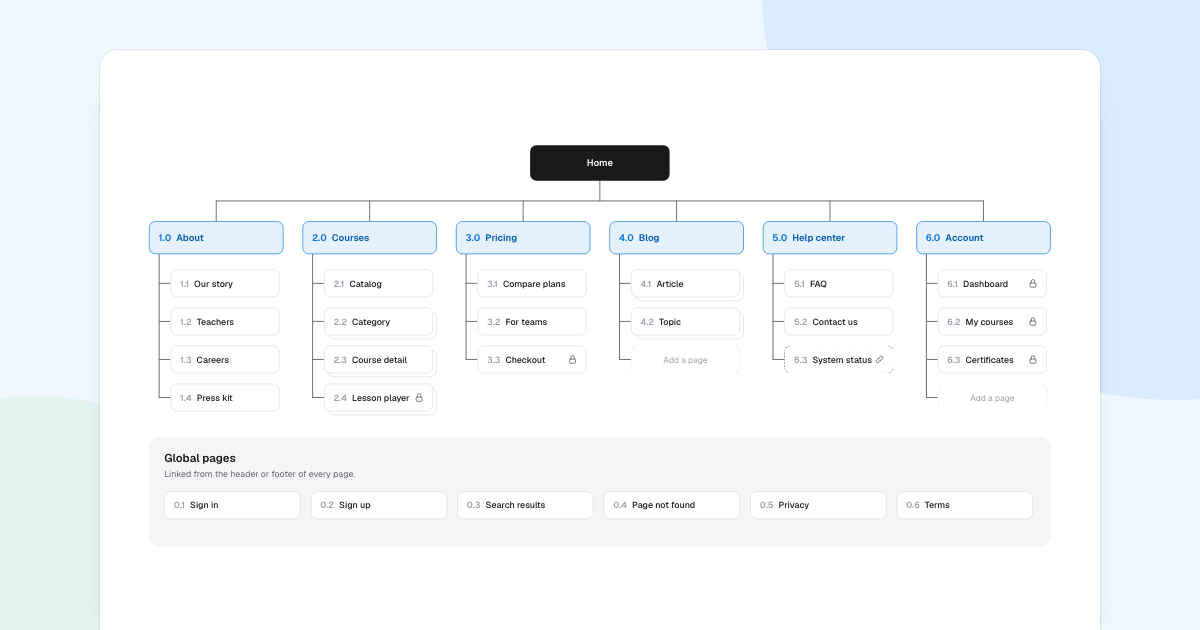
Learnly, an online course site, has 140 courses, a blog, a help center and pages only members see. Before anyone designs a page, the team needs to agree what pages exist. A website sitemap is that agreement, on one board.
Quick AnswerA website sitemap is a diagram of a site’s pages and how they nest. To create one, list the main sections under Home, nest the pages below them, mark page types such as templates and signed-in pages, then add global pages like Sign in that every page links to.
What is a website sitemap?
It is a tree of pages, also called a visual sitemap. It shows structure, not looks or journeys.
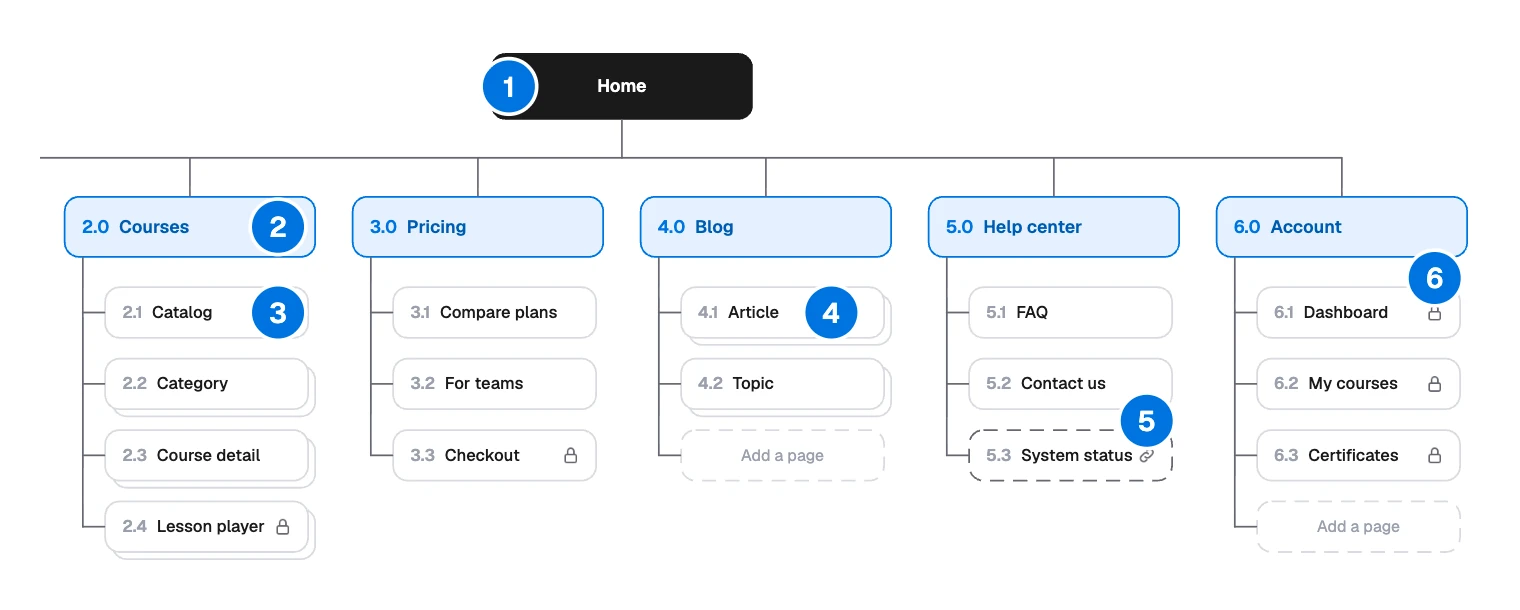
- Home: the top of the tree.
- Section landing: the top page of a section, numbered 2.0.
- Page: one page below it, numbered 2.1.
- Template: a stack means one design used by many pages.
- External site: a dashed box, such as “System status”.
- Signed-in only: a lock on the page.
Draw one when you build a site, restructure one or add a large section. The tree is also where you find duplicate pages and pages with no obvious home.
Visual sitemap or sitemap.xml?
The word covers three different things, and searches often mix them up.
| Kind | What it is | Who it is for | How you make it |
|---|---|---|---|
| Visual sitemap | A diagram of pages, used for planning | Your team | Draw it, as in this guide |
sitemap.xml | A file listing URLs | Search engines | Usually generated by your platform |
| HTML sitemap | A page of links on the site | Visitors | Build it like any other page |
This guide is about the first. Drawing one does not help search engines find your pages, and FlowDraw does not export sitemap.xml. A good structure still helps people, and clear sections make a site easier to link well.
How to create a website sitemap
List the sections
Ask what people come to do, then give each main job a section. For a site that exists already, list its pages first. To learn how visitors would group things, run a card sort, and FlowDraw has a free “Card sorting” template for it.
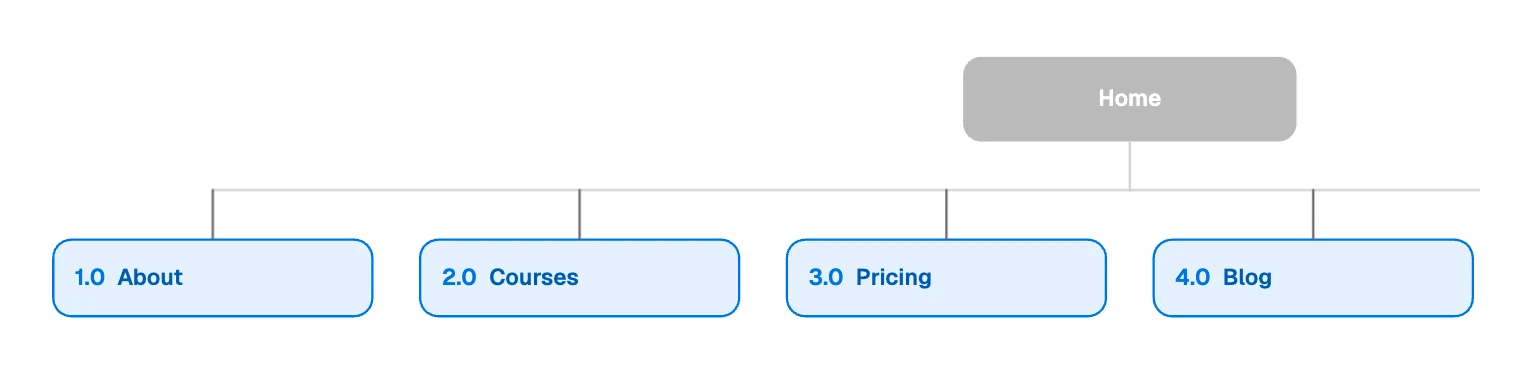
Learnly has six: About, Courses, Pricing, Blog, Help center and Account. Use the words visitors would use.
Nest the pages
Put each page under the section people would look in first. Number them, so anyone can say “open 3.2” and be understood.
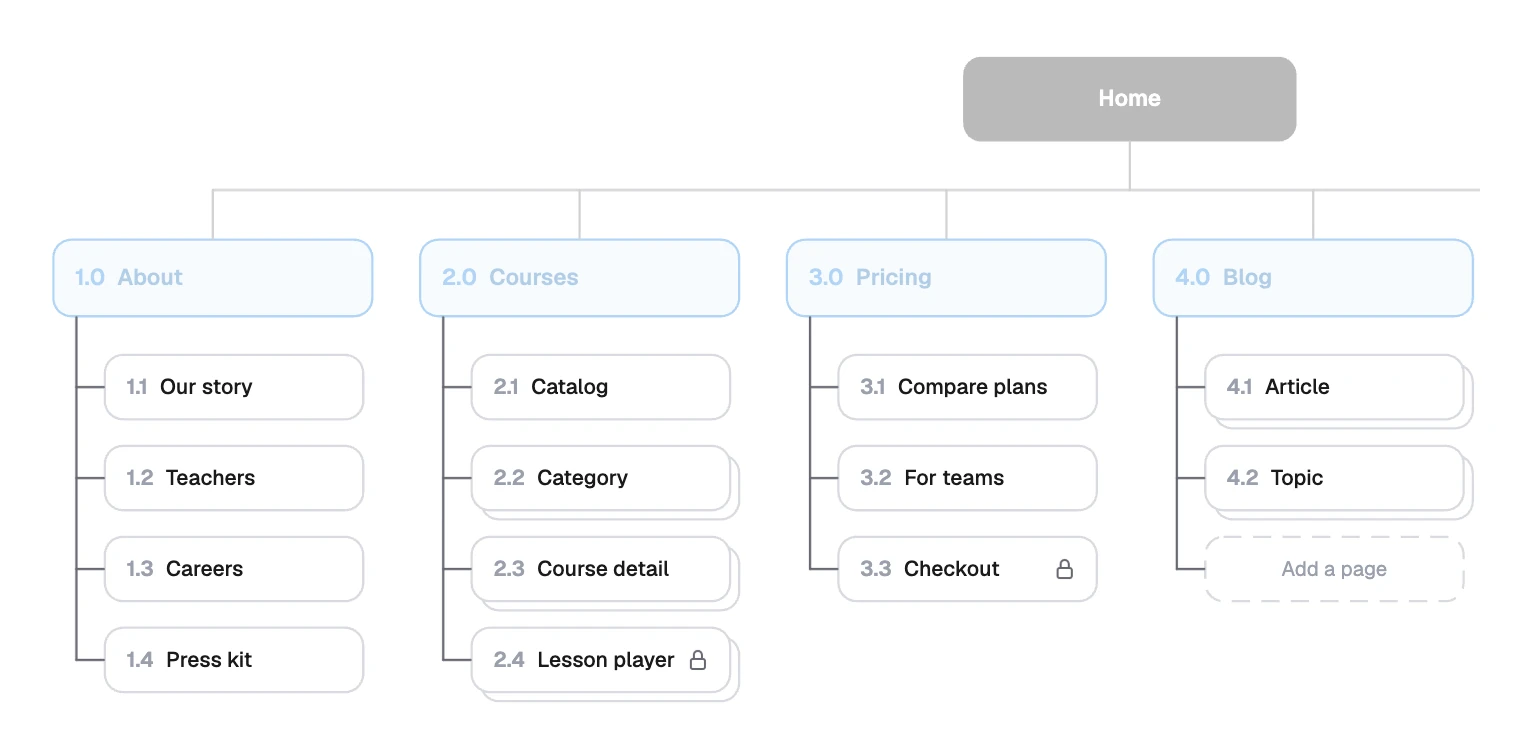
If a page seems to fit two sections, pick one and link to it from the other. A tree shows where a page lives, not every link to it.
Mark the page types
Pages are not all equal, and the difference matters to whoever builds them.
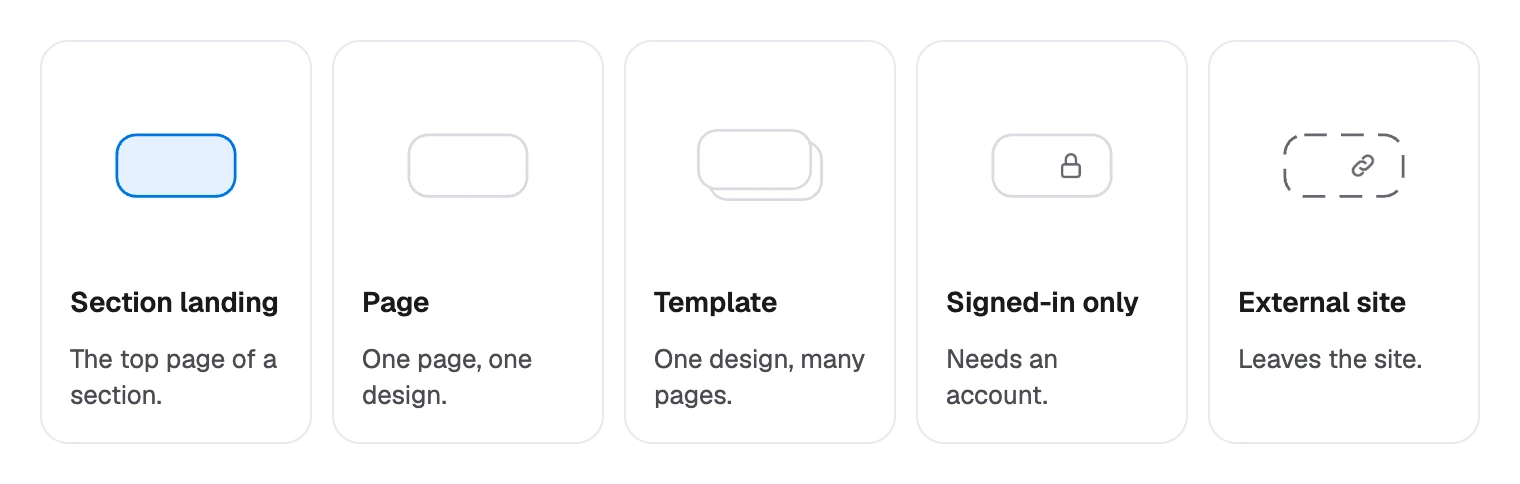
Templates matter most. Course detail is one design for 140 courses, so it gets one box, marked as a stack:
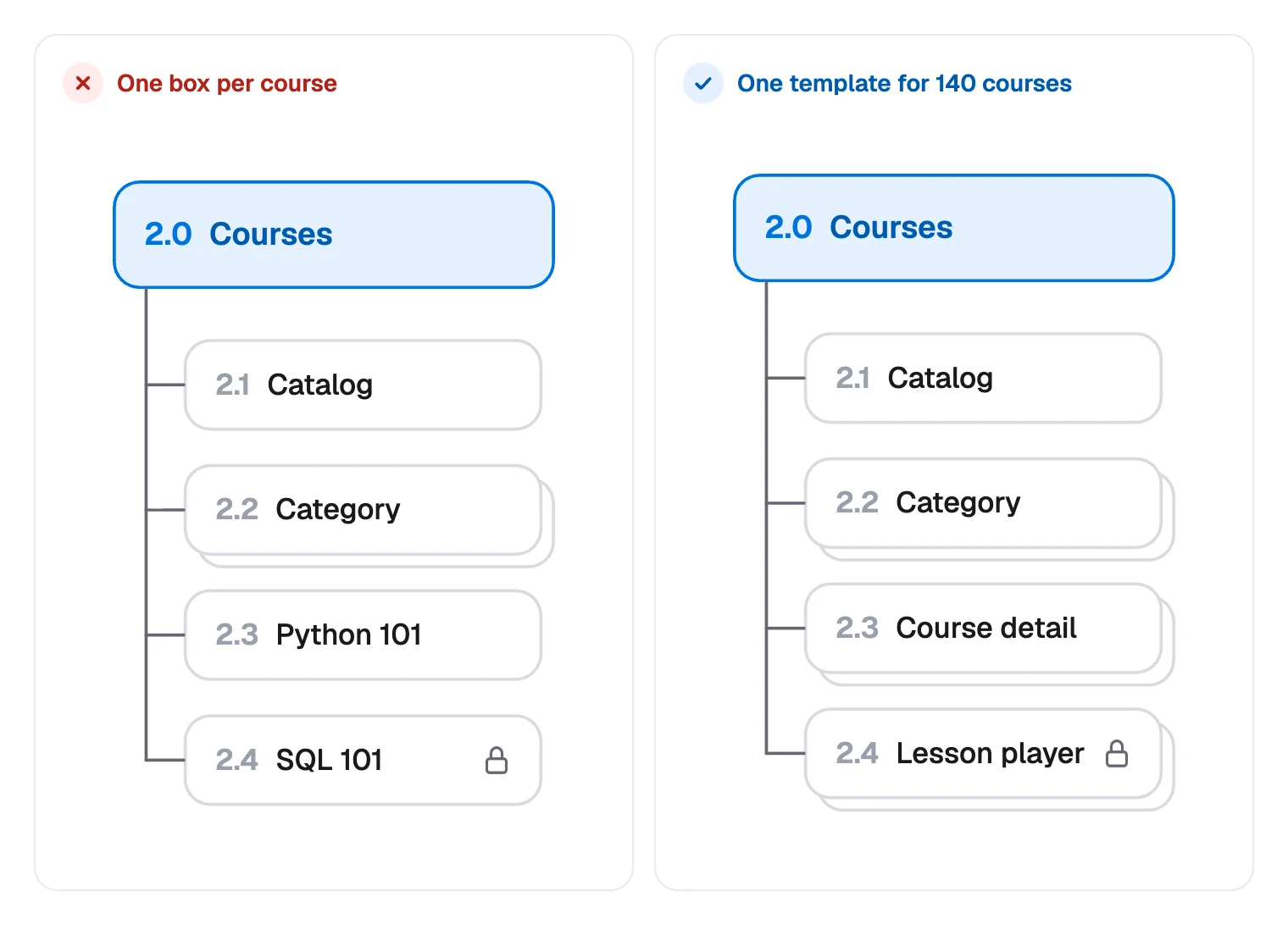
Note decisions as you go. The board records one: “Guests who open a locked page go to Sign in, then straight back.”
Add the global pages
Some pages belong to no section, because the header or footer links to them from everywhere. Keep them apart, so they do not clutter the tree.

“Page not found” is easy to forget, and someone still has to design it. Learnly’s strip also holds Privacy and Terms.
After this, map how people move across pages as a user flow, then draw the pages as wireframes.
Drawing a website sitemap in FlowDraw
The template is free, in the Product design category.
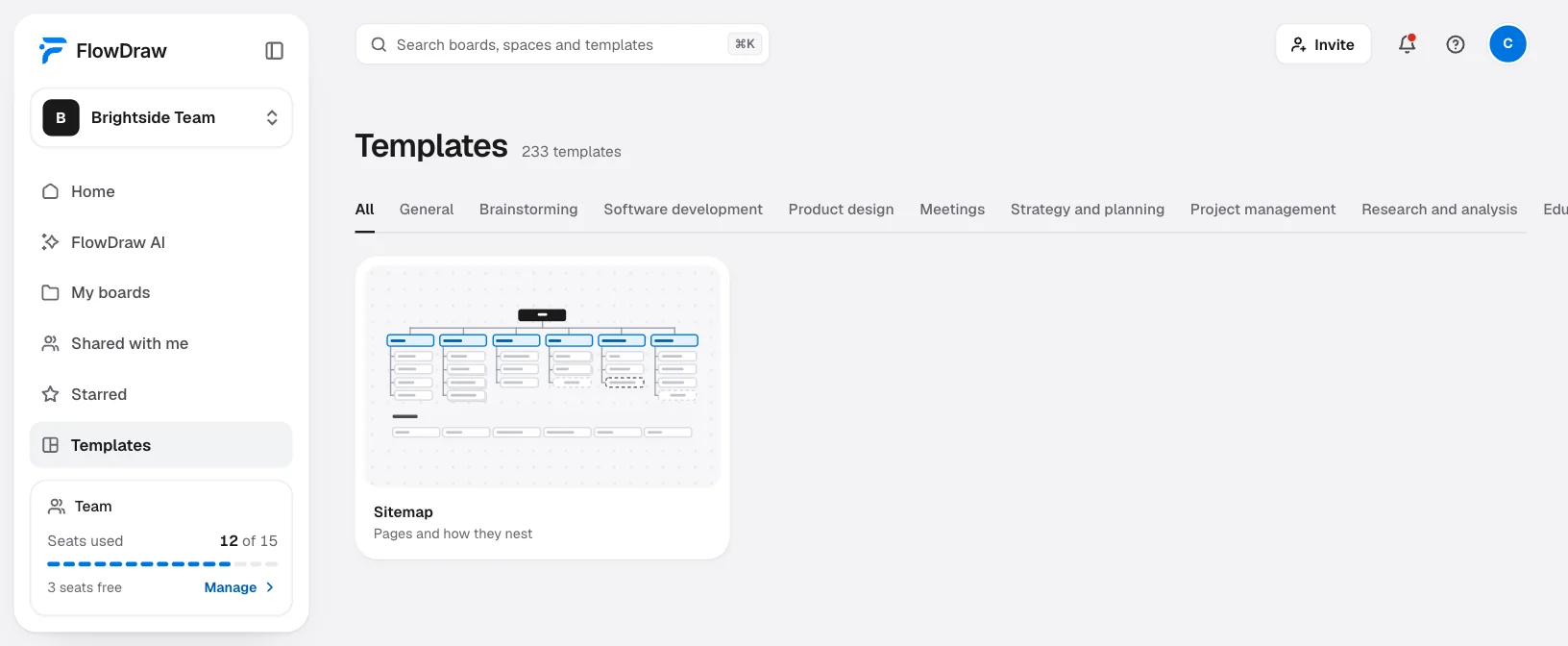
Open the template
Search for “Sitemap” under “Templates”, open the card, then choose “Use template”.
Rename the pages
Double-click a name or a number and type. A page is a box with two text boxes on it. The dashed “Add a page” boxes under Blog and Account take text directly.
Add a page
Drag from an empty part of the board around a page box and its short line, which selects all four elements. Press ⌘D (Ctrl+D on Windows), drag the copy into place and retype it.
Extend the line
If the new page sits below the last one, click the vertical line and drag its lower end down to reach it.
Mark a template or a lock
Copy a page that already shows the mark you need. The back of a stack and each lock are separate elements, and you can copy them too with ⌘D.
Review it
Choose “Share” and add people. They press C and pin a comment on a page. “Export” gives you PNG, SVG, PDF or JSON.
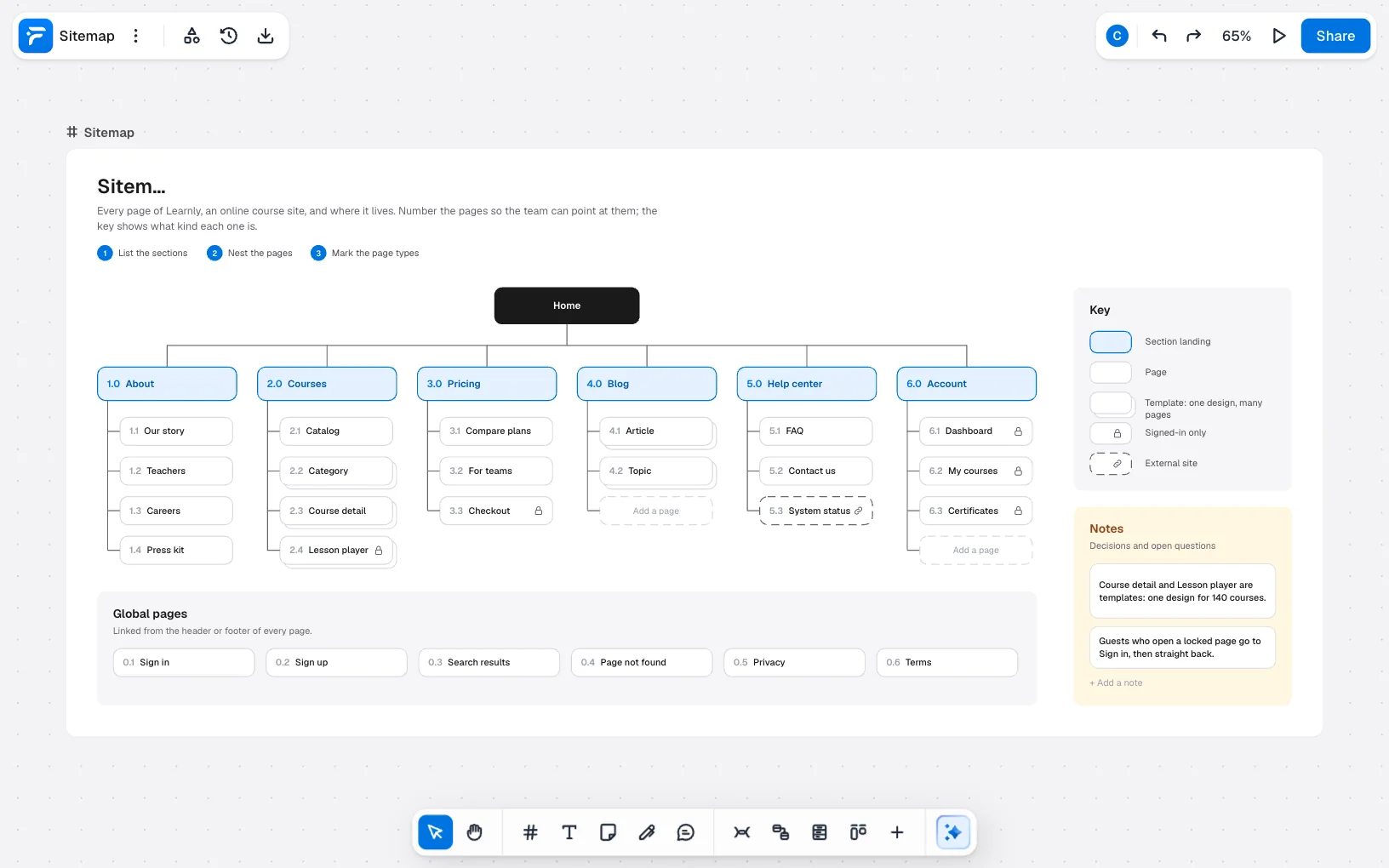
On Free, this board has 176 elements and Free holds 150. It opens whole and you can change every word, but adding anything is refused until you are under 150.
Deleting the title block, the key and the notes panel leaves 147. A new page costs four, so also remove a page you do not need, or use Pro, which has no limit.
Website sitemap mistakes to avoid
- Copying your org chart. Visitors do not care which team owns a page. Sections should follow what they came to do.
- One box per item. Draw 140 course pages as one template, or the tree stops being readable.
- Vague names. “Resources” and “Solutions” could hold anything. Say what is inside.
- Burying what matters. If a key page sits several levels down, ask whether people will find it.
- Forgetting the unglamorous pages. Search results, errors, Privacy and Terms all need someone to design them.
- Treating it as sitemap.xml. The drawing is for your team. Search engines need the file, from your platform.
FAQ
Every page or page type, how they nest under one another and how they are reached. Numbers help people refer to pages. A key can mark templates, signed-in pages and links to other sites.