
How to make a user flow diagram
Learn how to make a user flow diagram: pick one goal, draw the happy path, add every error and exit, list edge cases and start from a free template.
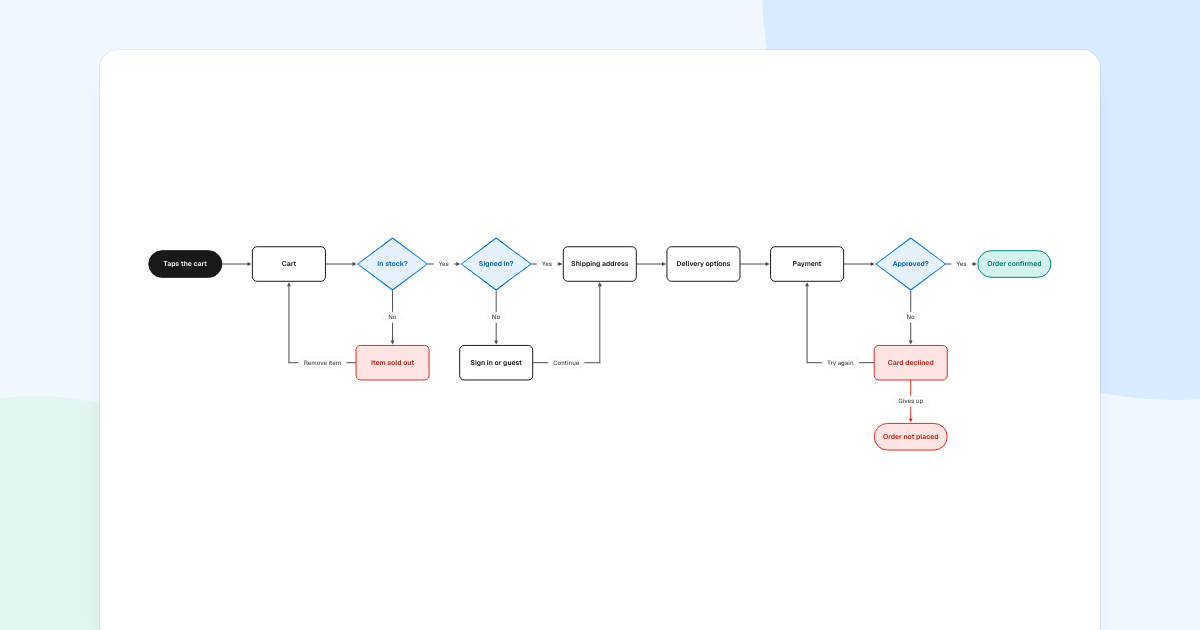
Most checkouts work for the shopper who does everything right. A user flow diagram makes you draw the others too: the sold-out item, the guest, the declined card. This guide follows a shopper buying a plant at Leaf & Pot.
Quick AnswerA user flow diagram shows the screens and decisions one person meets on the way to one goal. To make one, name the person and goal, draw the happy path from the entry point, add every error and exit, label each branch, then list the edge cases.
What is a user flow diagram?
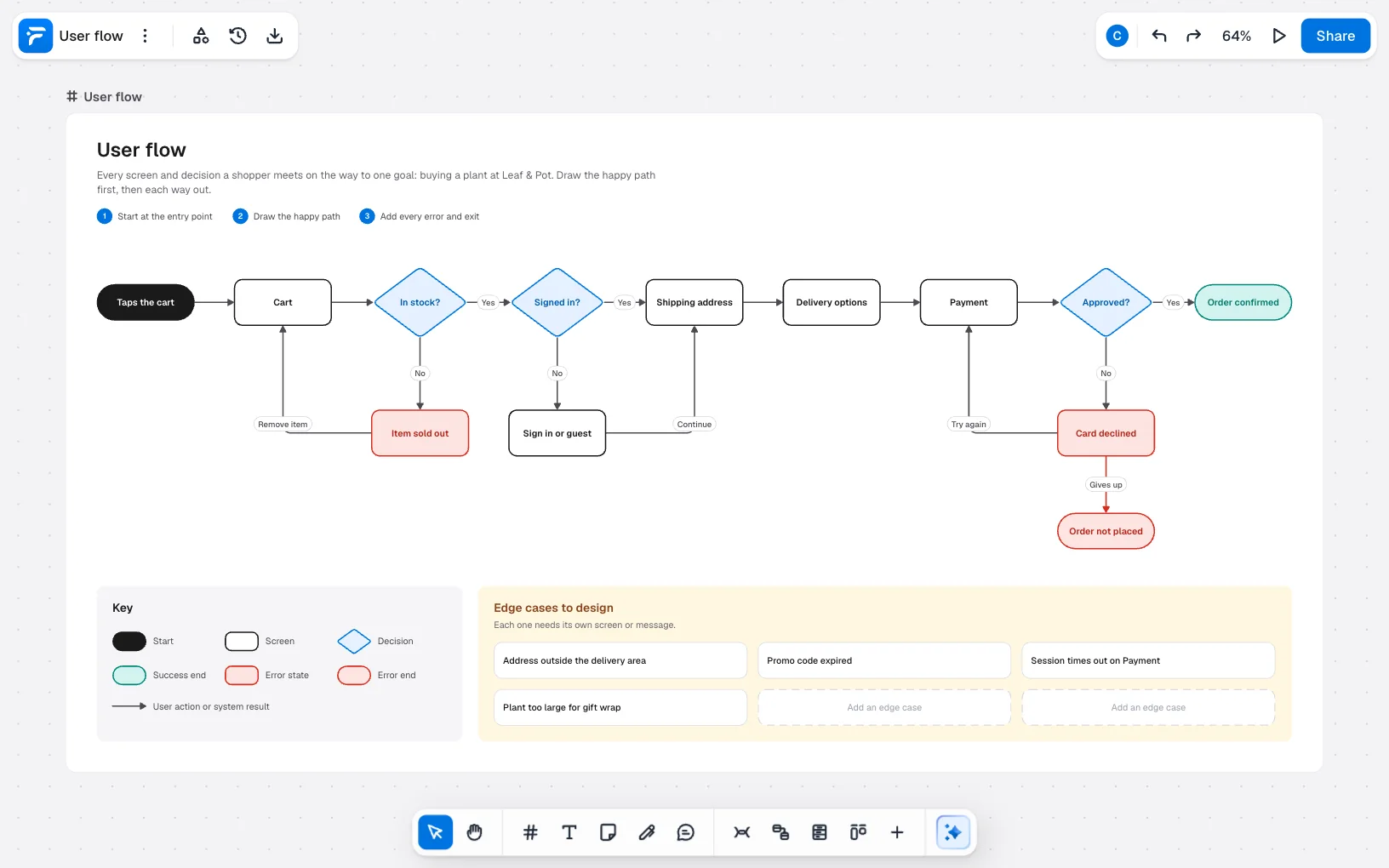
It is a map of one task, seen from the person doing it. Six kinds of box cover most flows. The notation is a convention rather than a standard, so keep a key on the board.
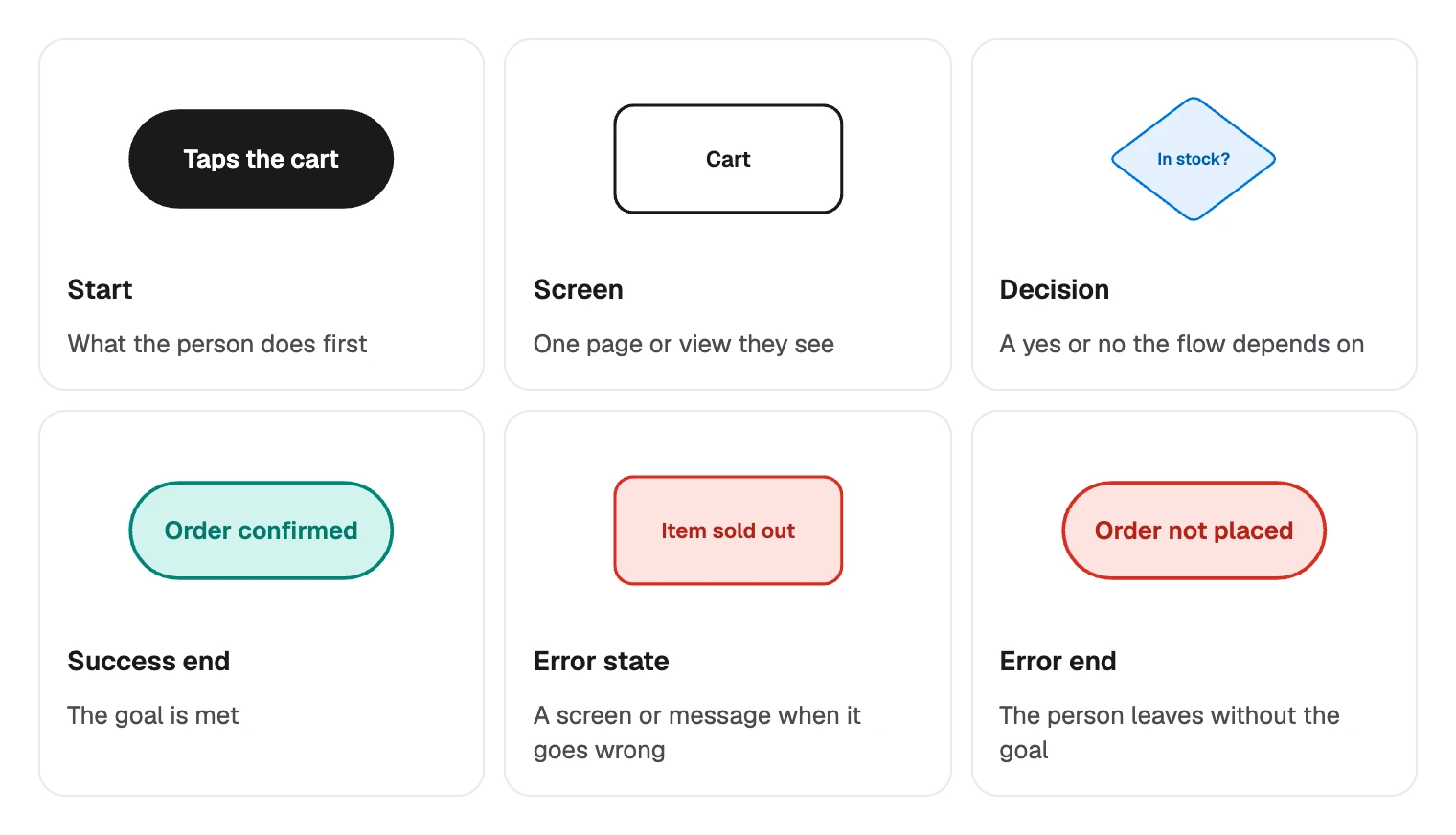
Draw one before you design screens, or when a task has enough branches that people remember it differently.
User flow, flowchart or journey map?
These get mixed up because they all use boxes and arrows, or at least stages in order.
| Diagram | What it follows | Pick it when you ask |
|---|---|---|
| User flow | One person on screens | What must we build for this task? |
| Flowchart | Any process, people or systems | How does this work? |
| Journey map | The experience over time | How does this feel, and where does it hurt? |
How to make a user flow diagram
Pick one person and one goal
Write the goal as something you could confirm happened: buying a plant, with the order confirmed. A second goal, such as changing an address later, gets a second flow.
Then find where the person really starts. Here it is “Taps the cart”, not the home page, because everything before that belongs to another flow.
Draw the happy path
Draw the route with no problems, left to right, one box per screen. Write each decision as a question with a yes or no answer.

A decision is not always the person’s choice. The system answers “In stock?” for them, yet it belongs here because the answer changes what appears next.

Do not branch yet. A straight line first lets everyone agree on the route, and shows how many screens stand between the person and the goal.
Add every error and exit
Go back to each decision and draw the “No”. Every branch needs an answer to two questions: what do they see, and where can they go from there?
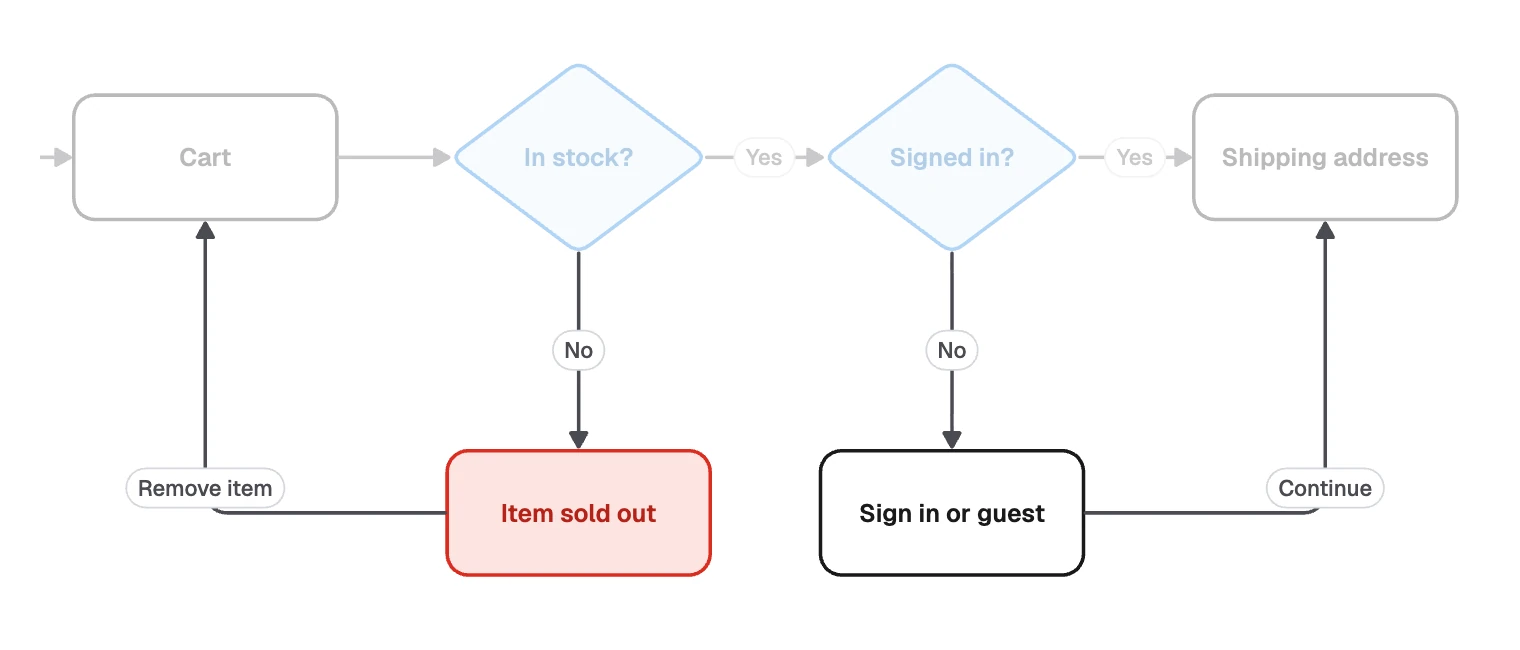
Not every “No” is an error. “Sign in or guest” is an ordinary screen, so it stays white, and red marks only what went wrong. Starting with these branches is a good habit in general, since they are where the screens nobody planned come from.
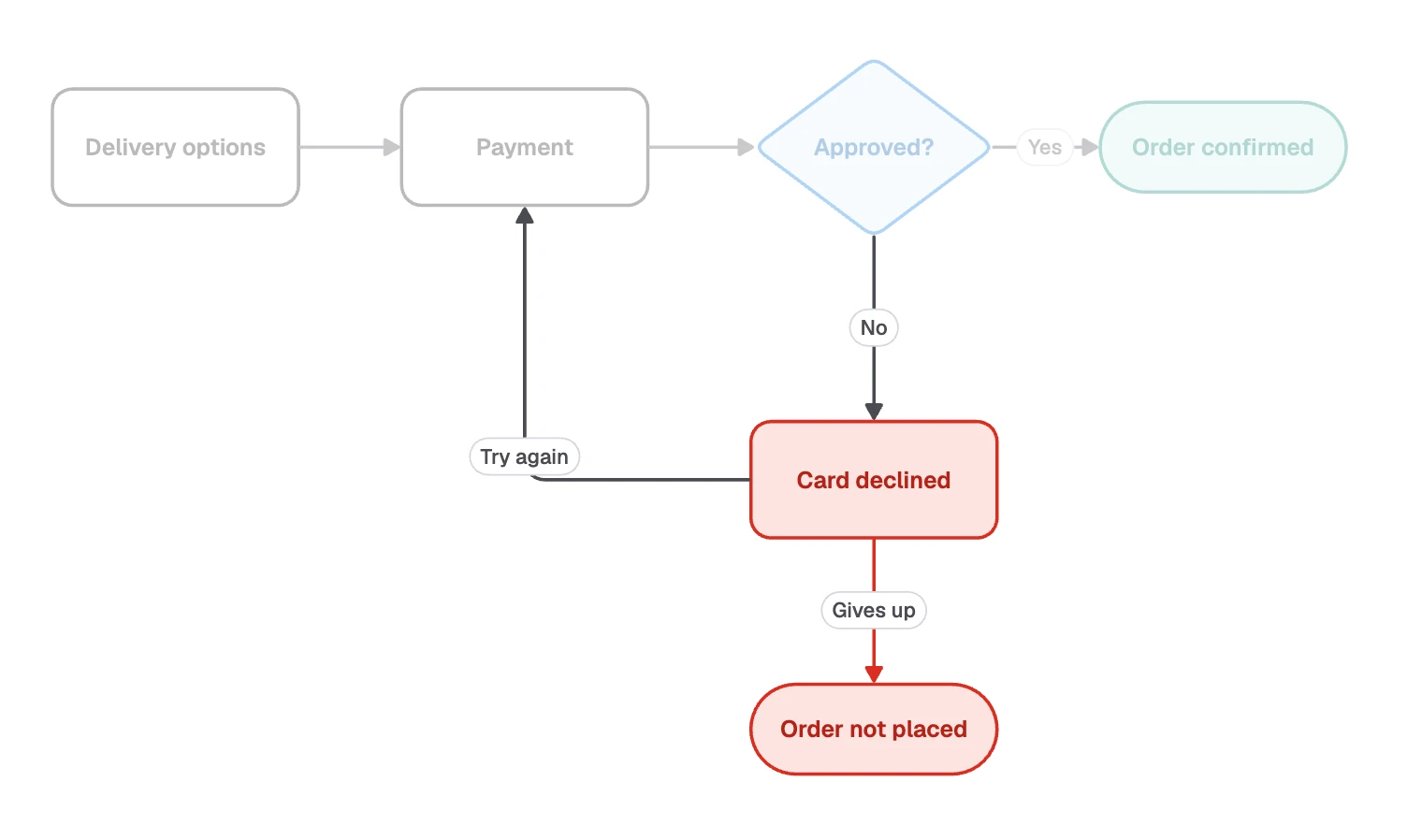
A dead end needs drawing too. Some shoppers give up, and that outcome deserves a box:
Label each way out
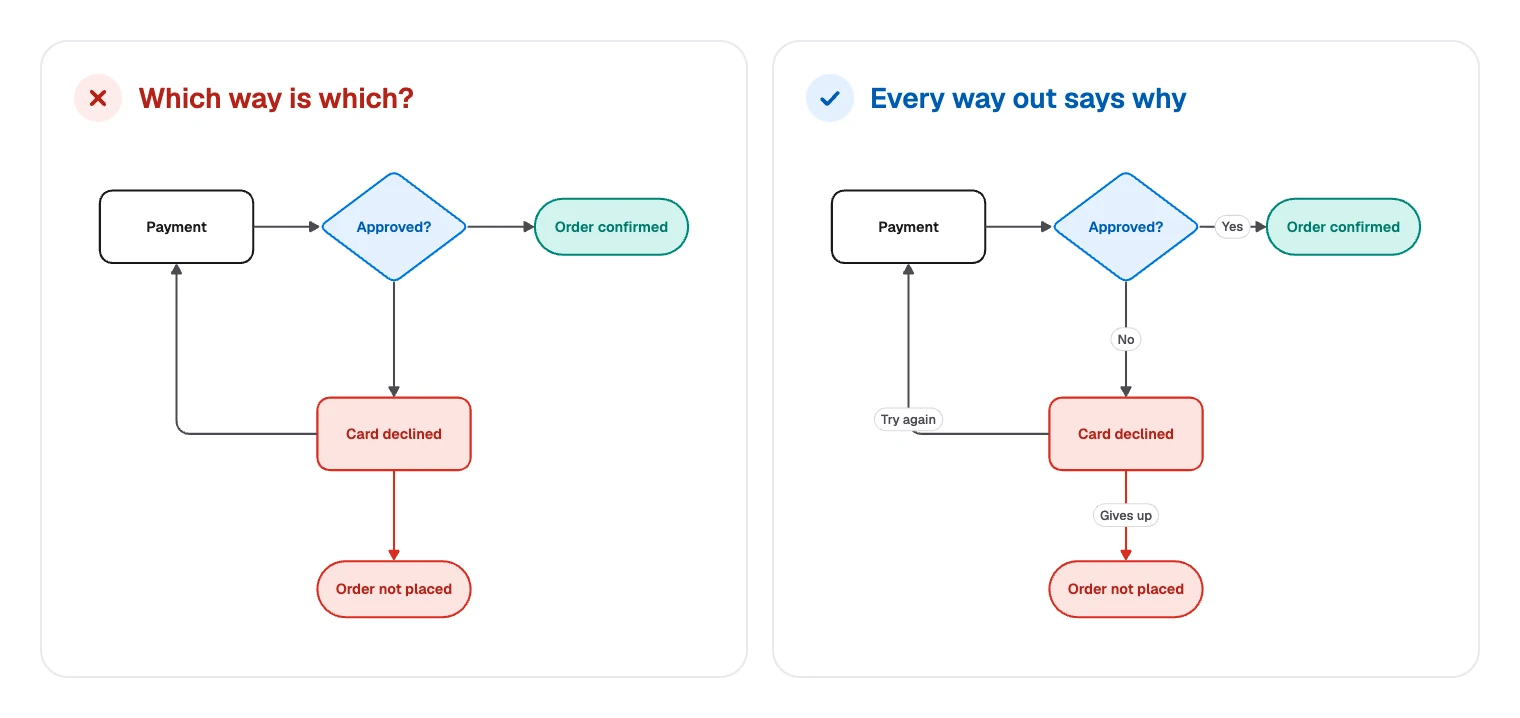
Every line leaving a decision or an error state gets a label. Without one, readers have to guess from the shapes.
List the edge cases
Some cases are too rare or too scattered to draw as branches. List them beside the flow, because each one still needs its own screen or message.
| Edge case on the board | What to decide |
|---|---|
| Address outside the delivery area | What can they do instead? |
| Promo code expired | Does the total change before they pay? |
| Session times out on Payment | Is the cart still there? |
| Plant too large for gift wrap | When do they find out? |
Drawing a user flow in FlowDraw
The template is free on every plan, and nothing in it needs Pro.
Open the template
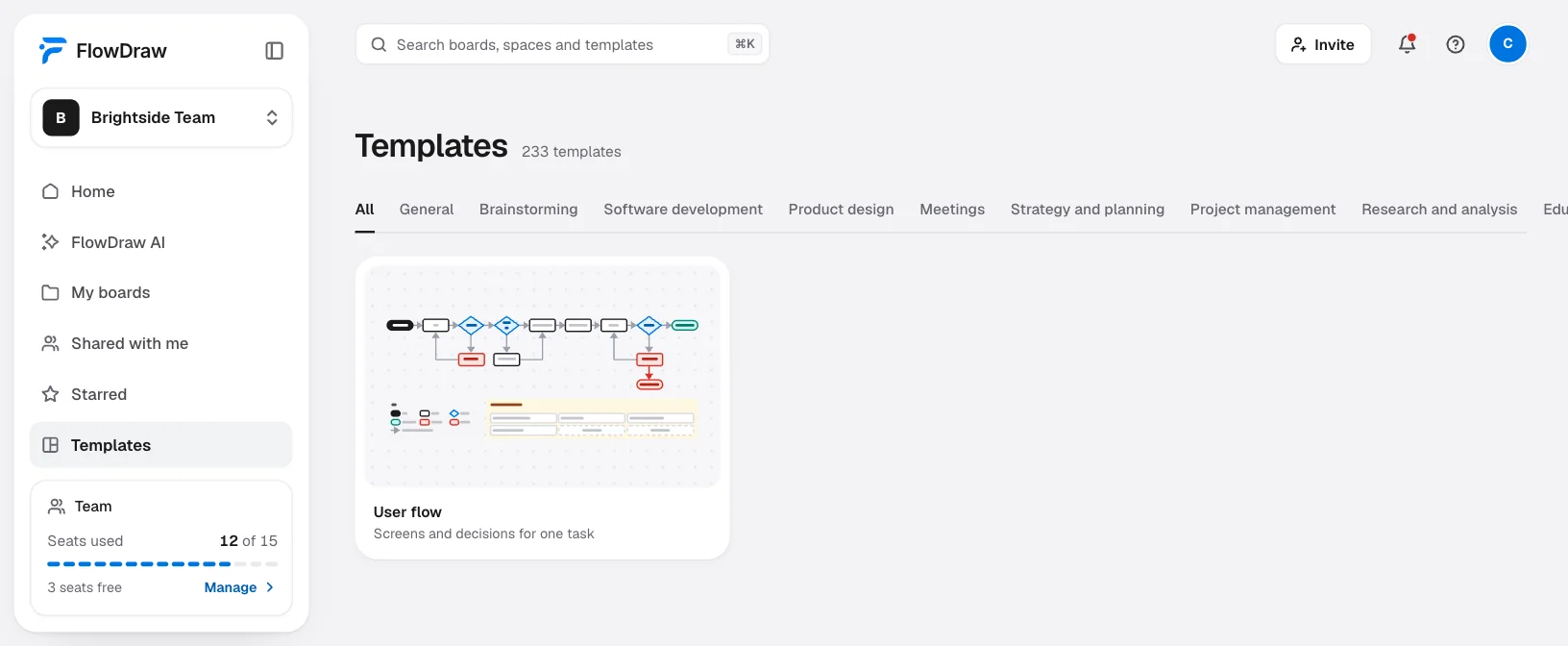
Search for “User flow” under “Templates”, open the card, then choose “Use template”.
Rename the screens
Double-click a box or diamond and type your own words. Press Esc to finish.
Add a screen
Hover over a box and a spot appears beyond each side. Click one to add a copy with no text, joined by a line. If a shape already lies that way, the click joins the two instead.
Label a branch
Select the line, then type in “Add a label” under “Line properties”. Lines stay attached, so they find a new route when you move a box.
Fill in the edge cases
The dashed “Add an edge case” boxes are ordinary shapes. Double-click one and type.
Check it with your team
Choose “Share” and add people. On Free everyone you invite can edit. On Pro only one person can, so others press C and comment.
On a blank board, press R for a box, D for a diamond and L for a line, with Esc between them. The pill is “Terminator” in the Flowchart library, under “Shape library”. Once the flow is settled, a wireframe of each screen comes next.
User flow mistakes to avoid
- Several goals in one flow. Buying and returning a plant are two diagrams.
- Starting too early. If the first box is your home page, ask whether that is where this person begins.
- Only the happy path. It is usually the part everyone already agrees on.
- Screens as verbs. “Cart” is a screen, while “Reviews the cart” is an action. Pick one style for boxes.
- Decisions with no question. A diamond that says “Payment” cannot be answered with a yes or no.
- Dead ends nobody chose. A box with no line out should be a deliberate end, drawn as one.
FAQ
It shows the screens and decisions one person meets on the way to one goal. Designers and developers use it to agree what must be built, including what happens when things go wrong.