
How to draw a sequence diagram
Draw a sequence diagram one message at a time: lifelines, replies, activation bars and fragments explained through a sign-in flow, with a free template.
A sequence diagram is a conversation written down: who says what to whom, and in what order. Learning how to draw a sequence diagram is mostly learning to follow one scenario from top to bottom, so we start with a sign-in.
Quick AnswerA sequence diagram shows how participants exchange messages over time. To draw one, put each participant in a column with a dashed lifeline below it, then add messages as arrows from top to bottom in the order they happen. Use dashed arrows for replies and thin bars for active work.
A sign-in, one message at a time
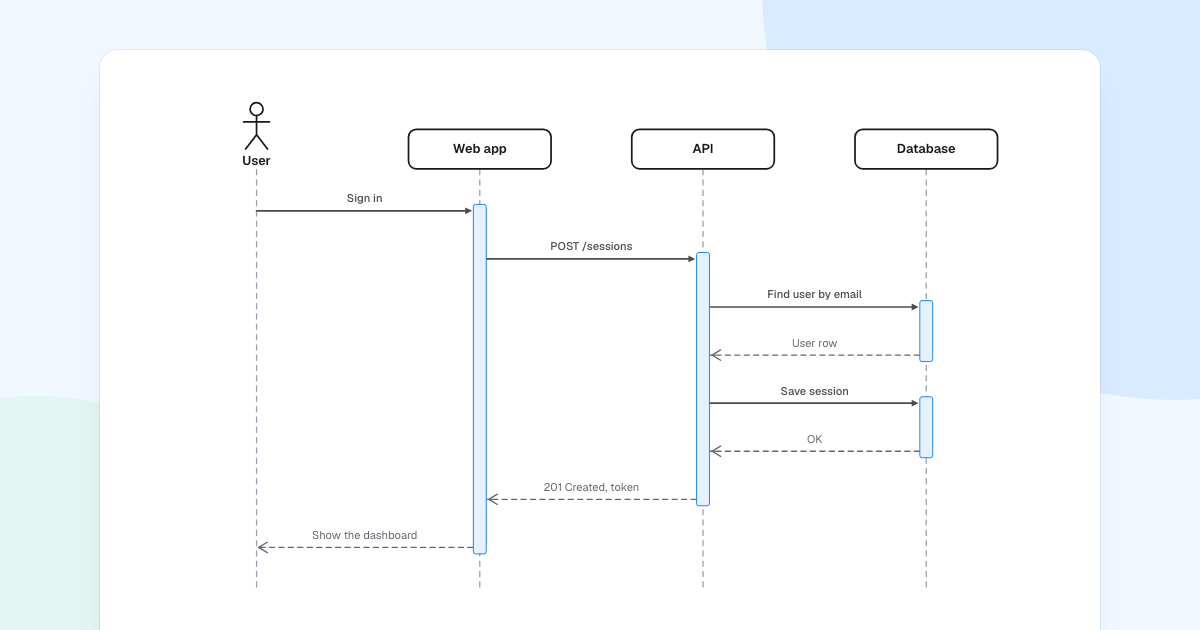
Four participants, eight messages. Read from the top down: solid arrows are calls, dashed arrows are replies.
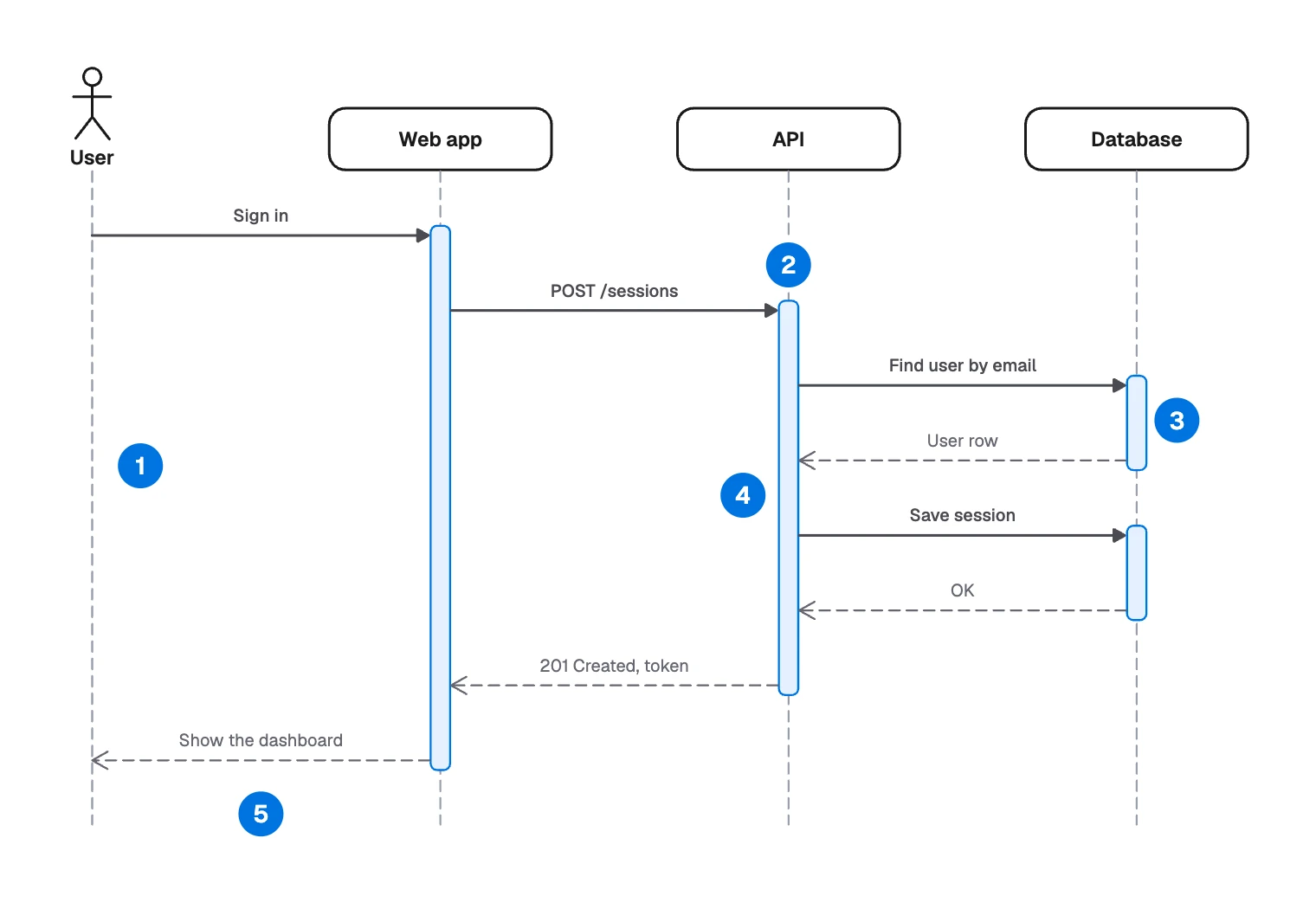
- Time runs down the page. A lower arrow happens later. The gap between two arrows says nothing about how long it took.
- The bars show who is busy. The API’s bar runs from “POST /sessions” to “201 Created, token”, because it is working or waiting that whole time.
- The database gets two short bars, one per query.
- Checking the password is not drawn. No message leaves the API for it. If that step is the point, add a self-message: an arrow from the API’s bar back to itself.
- This is the success path only. A wrong password takes another route, and the unhappy path deserves drawing too.
What is a sequence diagram?
It is a UML interaction diagram. Engineers use it to design an API, explain an integration or debug a request that passes through several services. It works for people too, such as a customer, an agent and a billing system.
It answers one question well: who calls whom? For anything else, choose another diagram:
- Logic with many branches: a flowchart.
- The statuses one object moves through: a state machine diagram.
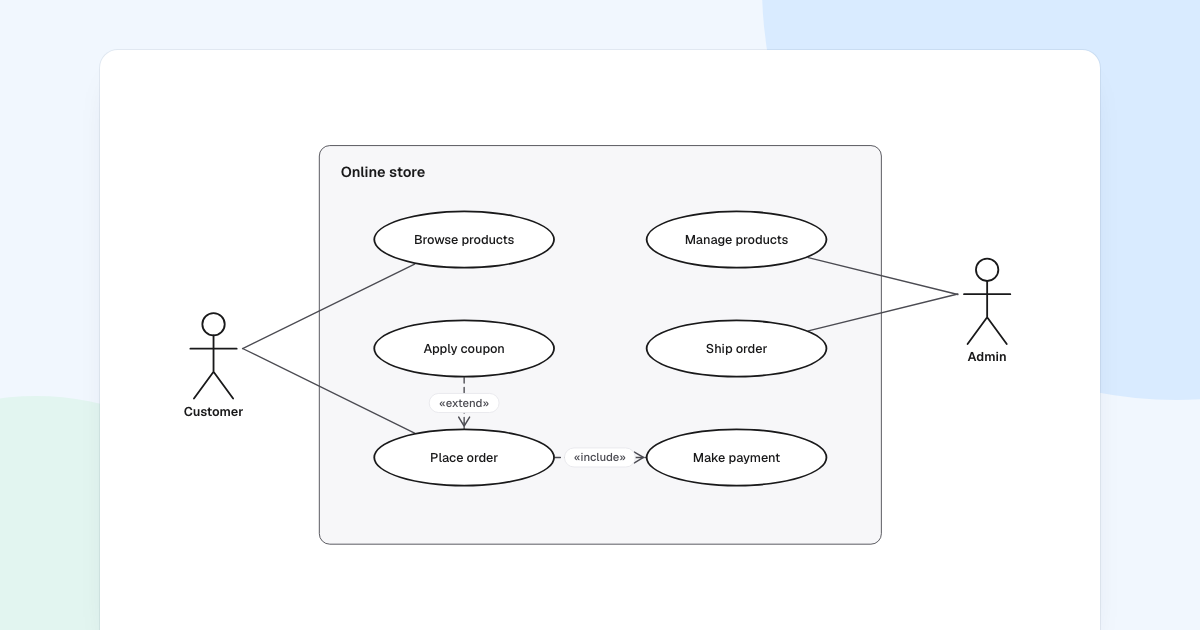
- What the system should do at all: a use case diagram.
Sequence diagram notation
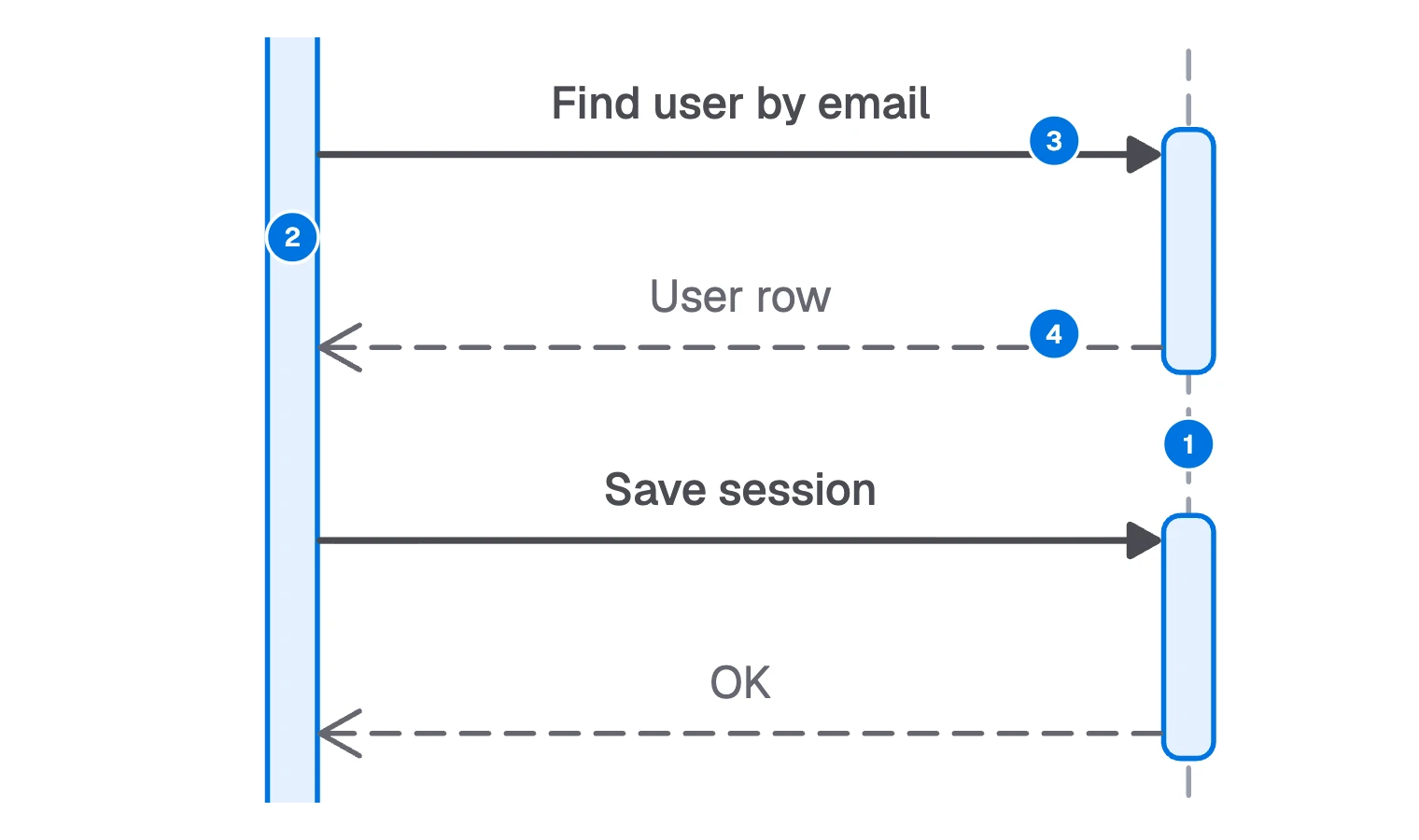
- Lifeline: a dashed line below a box or figure, for one participant over time.
- Activation bar: a thin rectangle, while the participant is working or waiting.
- Synchronous message: a solid line with a filled arrowhead, where the caller waits for an answer.
- Reply: a dashed line with an open arrowhead, for an answer going back.
Three more are not in this example:
| Element | Looks like | Means |
|---|---|---|
| Asynchronous message | Solid line, open arrowhead | The caller carries on |
| Create message | Dashed arrow to a new box | A participant is created here |
| Destruction | X at the end of a lifeline | The participant ends here |
Show branches and loops with fragments
A fragment is a labeled box around some messages. Four cover most needs:
altholds alternative paths, each with a condition.optholds something that happens only if a condition is true.loopholds something that repeats.parholds paths that run at the same time.
For the sign-in, an alt box would wrap everything after “User row”. Under [password ok], the API saves the session and returns 201. Under [else], it returns 401.
One or two fragments per diagram is plenty. Past that, draw a second diagram.
How to draw a sequence diagram
Pick one scenario
“A returning user signs in with the right password”, not “authentication”.
Line up the participants
Go left to right, in the order they first act. Whoever starts it goes on the left.
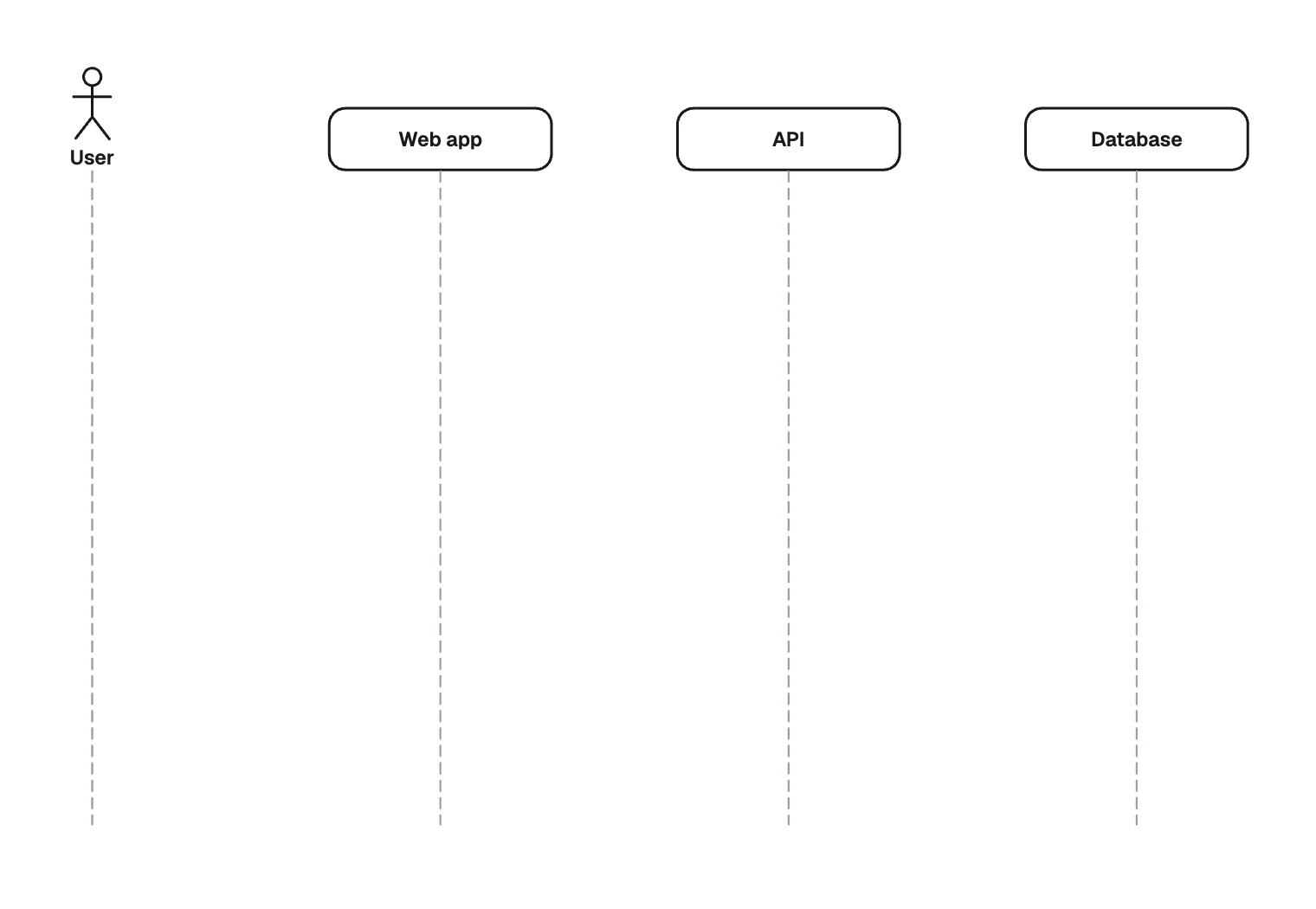
Participants first, in the order they act Write the first message and follow the chain
Keep asking who does what next. Name each message for your reader: “POST /sessions” suits engineers, and “Send login details” suits a product review.
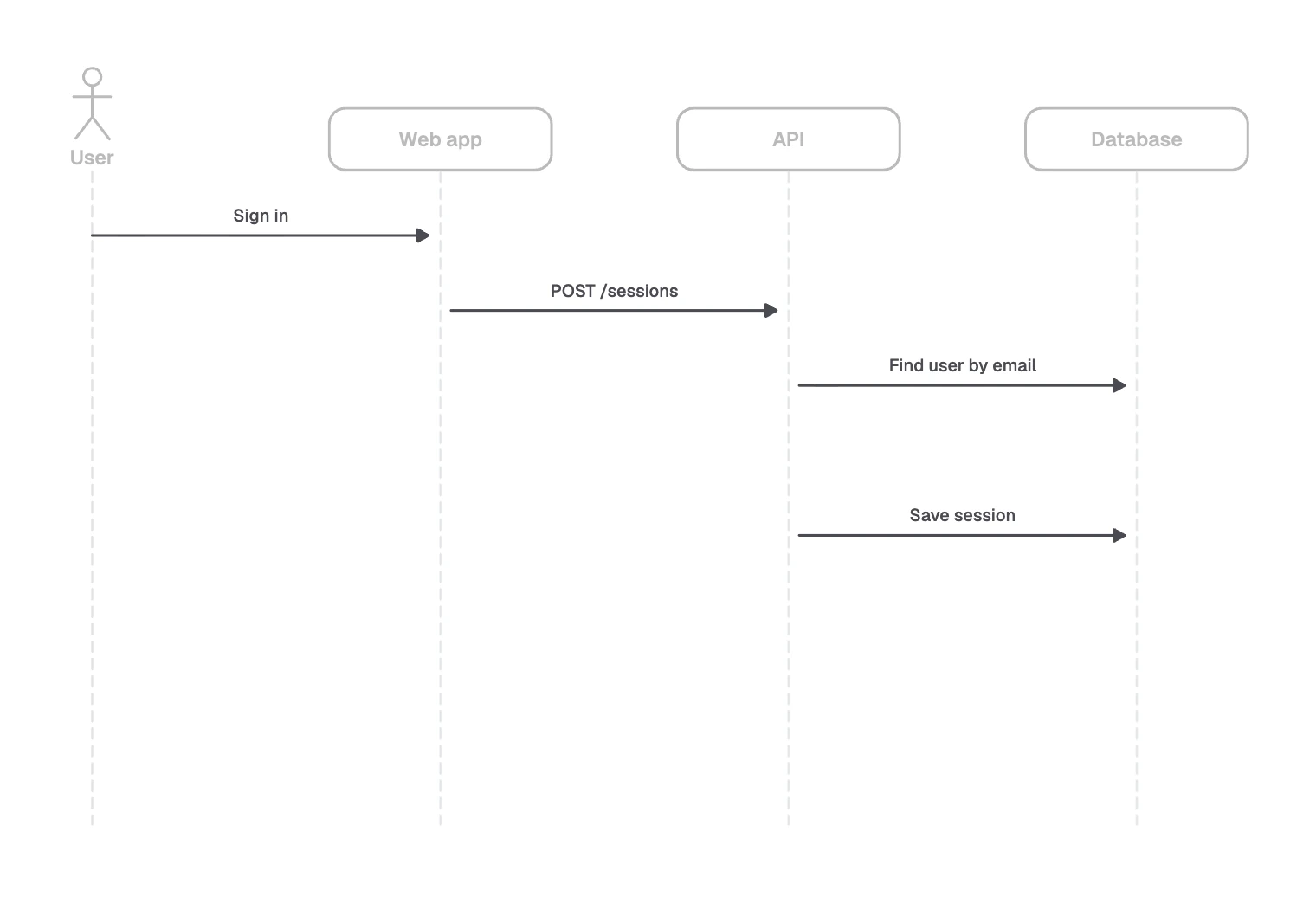
Then the calls, top to bottom Add replies where the answer matters
“User row” is worth showing, because the next step depends on it.
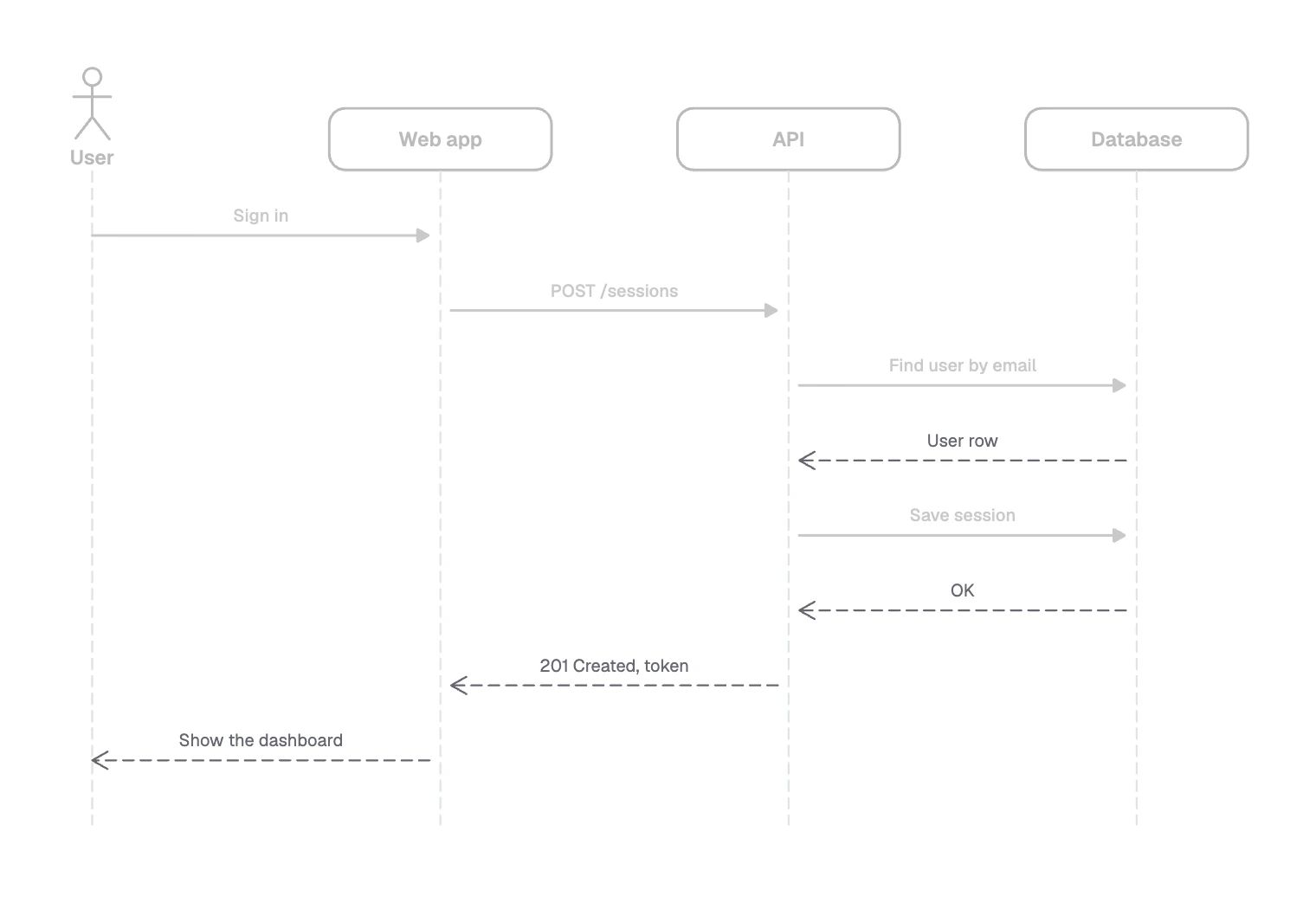
Replies go back on dashed lines Add activation bars if they help
They are optional, and a diagram without them still reads.
Add the failure paths
Put them in a fragment or on a second diagram.
Start from the free template in FlowDraw
The “Sequence diagram” template is free on every plan, because it is built from ordinary shapes, lines and text.
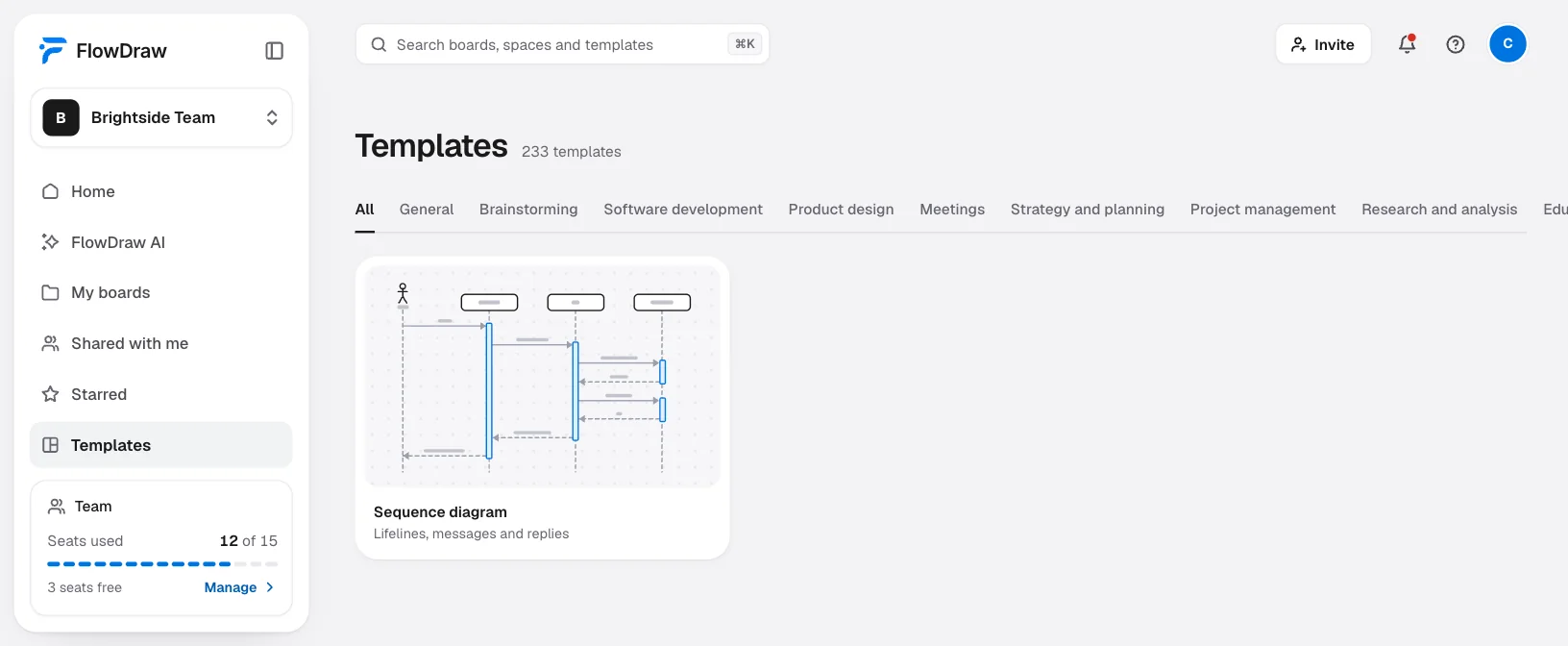
Open the template
Search for “Sequence diagram” under “Templates”, open the preview and click “Use template”.
Rename the participants
Select “Web app”, “API” or “Database” and type. Double-click “User” to change the name under the figure.
Add a participant
Select a box and press ⌘D (Ctrl+D on Windows). Press Esc, then L, and draw a line straight down from the copy. In “Line properties”, choose “Dashed”, set the end to “None” and the route to “Straight”.
Add a message
With nothing selected, press L and draw from one activation bar to another, keeping both ends level, then choose the “Straight” route. For a reply, choose “Dashed” and the “Open arrow” end.
Name the message
The template’s message names are separate text boxes above their lines, so select both when you move one. On a new line you can also type in “Add a label”.
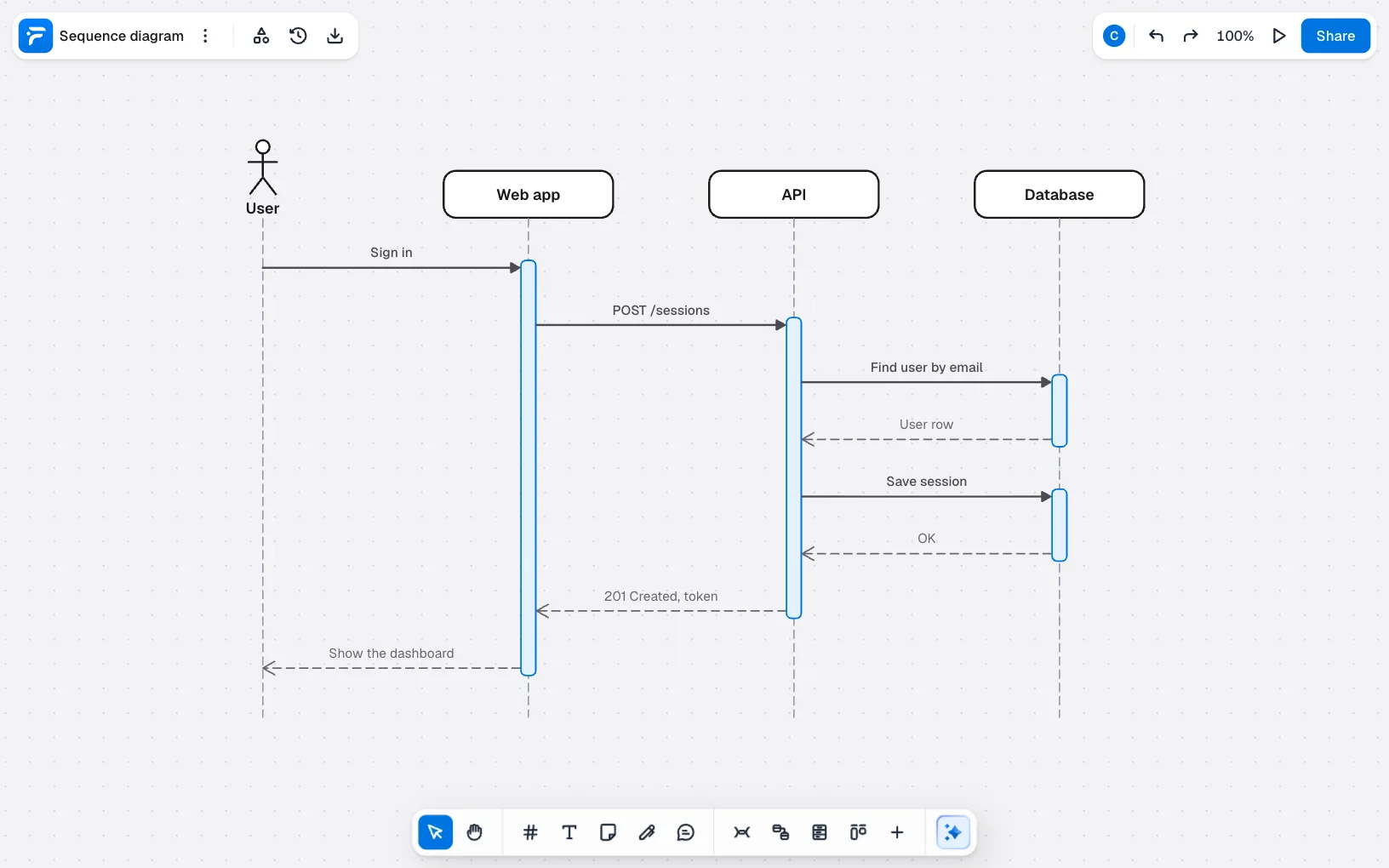
On Pro or Team, the “Sequence” group in the UML section of “Shape library” has real lifelines, “Activation”, “Alternative”, “Loop”, “Synchronous message” and “Reply message”.
On Free that library opens an upgrade dialog, so draw a failure path as its own messages lower on the board.
You can also ask for a first draft on any plan, for 10 AI credits. Click “FlowDraw AI” in the sidebar, set “Diagram” to “Sequence” and click “Draw it”:
Sequence diagram of a sign-in with User, Web app, API and Database. The API looks up the user by email, checks the password, saves a session and returns a token. If the password is wrong, it returns a 401 instead.
You get a new board with participants, dashed lifelines and labeled messages, all ordinary elements you can edit.
Sequence diagram mistakes to avoid
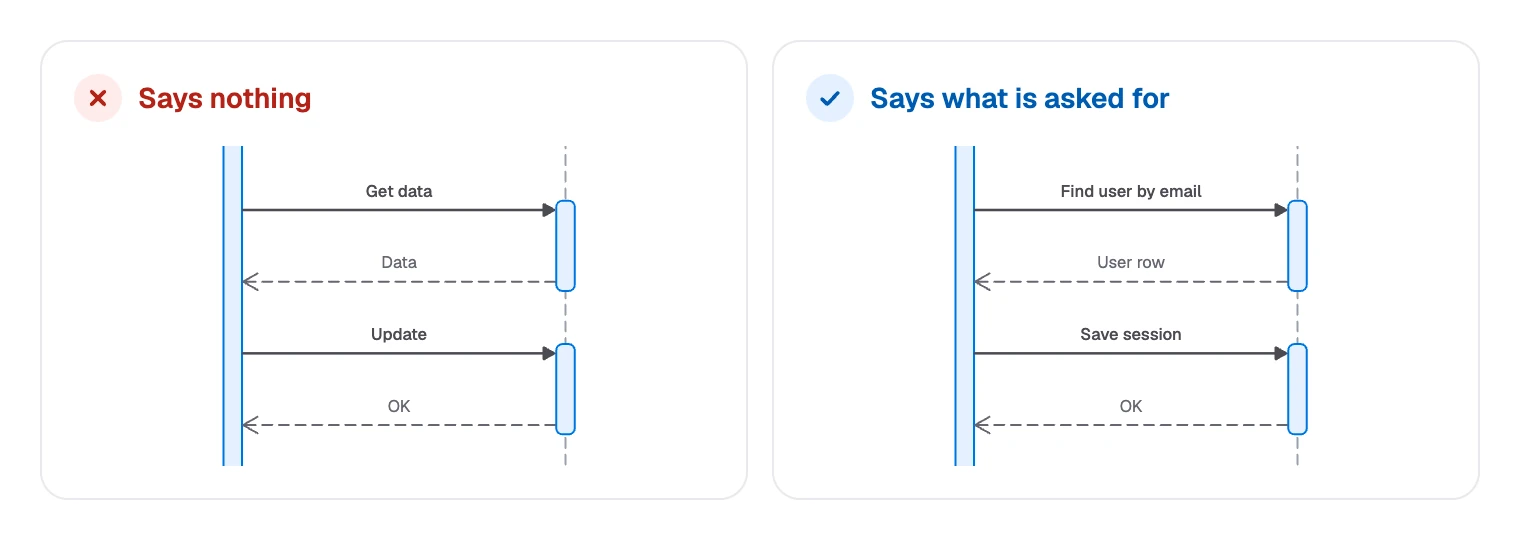
Vague messages are the most common. “Get data” and “Update” tell nobody anything, so say what is being asked for.
- Every branch in one diagram. Nested fragments become unreadable fast, so give each scenario its own.
- Mixed levels. “Browser” beside
validateToken()hides what the diagram is about. Keep participants at one level. - Solid lines for replies. Readers lose track of who is calling and who is answering.
- Overlap shown by position. Two arrows side by side still read as one after the other. Use
parfor work that really runs together. - Arrowheads chosen by habit. A filled head says the caller waits, so check it against the real system.
To try it, create a free account, then open the template and rename the participants to match your own system.
FAQ
A flowchart follows one process through its steps and decisions. A sequence diagram follows messages between participants over time, so use it when the question is who calls whom.