What is a feature flag rollout?
A feature flag is a switch in the code that turns a feature on for some users and off for others, without a new deployment. A rollout plan says who gets the feature first, how the audience grows, what you measure before each increase, and how you turn it all off if something breaks.
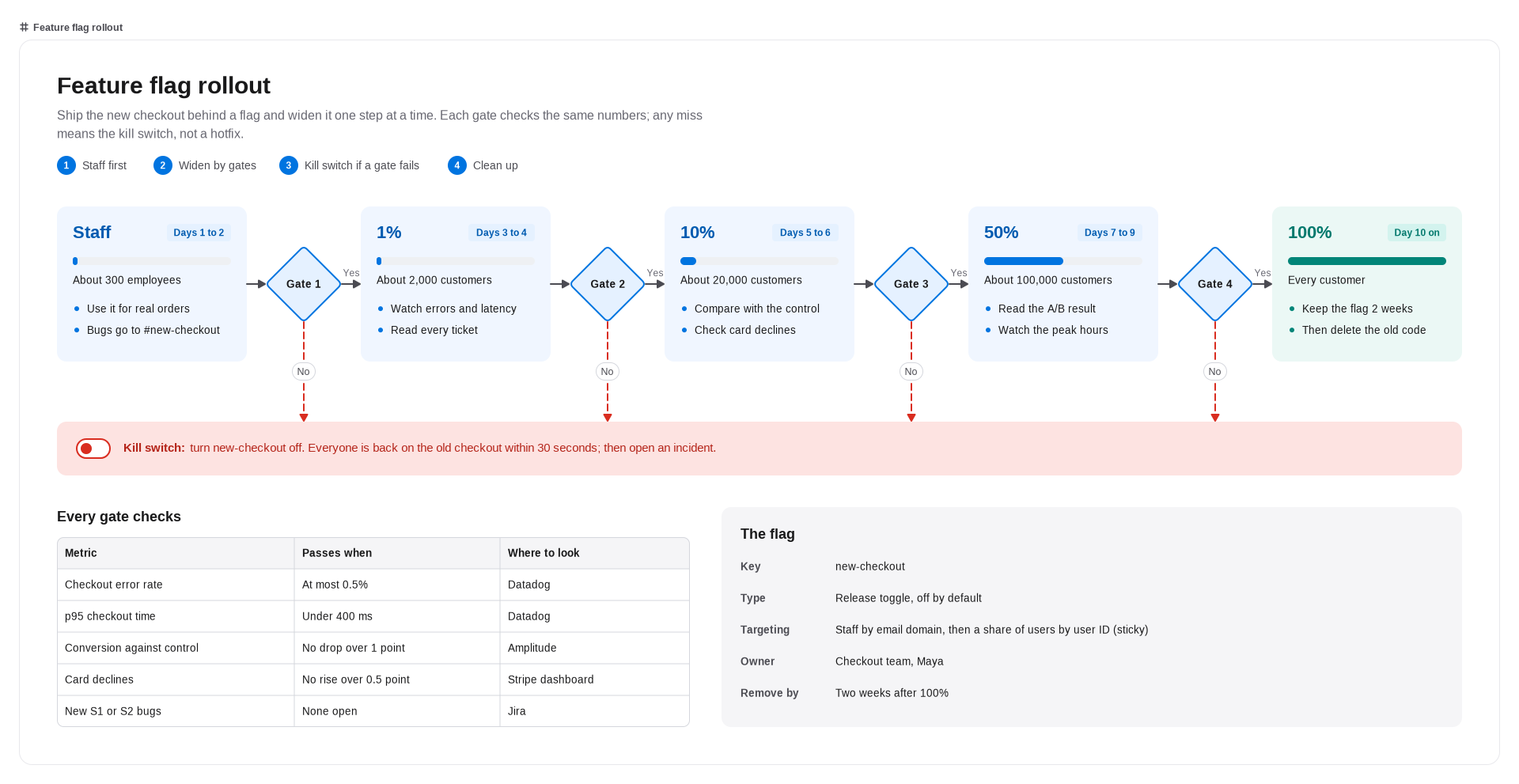
This template plans the release of a new checkout. Its subtitle sums up the approach: ship behind a flag and widen it one step at a time. Each gate checks the same numbers, and any miss means the kill switch, not a hotfix. Four numbered phases under the title give the outline: staff first, widen by gates, kill switch if a gate fails, clean up.
Five stages, starting with staff
Each stage is a card with a share, a date range, an audience size and two tasks. The first three look like this:
- Staff, days 1 to 2: about 300 employees use it for real orders, and bugs go to the channel #new-checkout.
- 1%, days 3 to 4: about 2,000 customers. The team watches errors and latency and reads every ticket.
- 10%, days 5 to 6: about 20,000 customers. Now there is enough traffic to compare with the control and check card declines.
The tasks change as the audience grows. At 1% you can still read every support ticket. At 10% you cannot, so the work shifts to comparing numbers. A thin bar on each card fills in proportion to the share, which gives the row a visual sense of scale.
Gates and the kill switch
Between two stages sits a diamond: Gate 1 to Gate 4. Each has two exits. “Yes” leads to the next stage. “No” drops straight down to the red bar that spans the board.
That bar is the kill switch, and its text is an instruction: turn new-checkout off. Everyone is back on the old checkout within 30 seconds; then open an incident. All four gates lead to the same bar, so there is one response to failure and no debate about it at the moment it happens.
The last two stages complete the row. At 50%, days 7 to 9, about 100,000 customers are in, and the team reads the A/B result and watches the peak hours. At 100%, from day 10 on, the tasks are about leaving: keep the flag 2 weeks, then delete the old code.
Decide the pass criteria in advance
The table “Every gate checks” lists five metrics, the value that passes and where to look it up:
- Checkout error rate: at most 0.5%.
- p95 checkout time: under 400 ms.
- Conversion against control: no drop over 1 point.
- Card declines: no rise over 0.5 point.
- New S1 or S2 bugs: none open.
Thresholds agreed before the launch are what make a gate honest. Once a team has spent months on a feature, it will find reasons to accept a number that is slightly off. A written limit removes that choice. Note the mix, too: two technical metrics, two business metrics and one about bugs. A checkout can be fast, error-free and still lose sales.
Describe the flag itself
The card on the right records five facts about the flag. Its key is new-checkout. Its type is a release toggle, off by default. Its targeting is staff by email domain, then a share of users by user ID, marked “sticky”, which means a customer who gets the new checkout keeps it on the next visit. Its owner is the Checkout team, with a person named. And it has a removal date: two weeks after 100%.
The last two lines prevent the usual fate of feature flags, which is to stay in the code for years because nobody remembers whose they are. An owner and a date turn cleanup into a task.
How to use the feature flag rollout template
- Open the board and rename the feature. Change the flag key everywhere it appears, including the kill switch bar.
- Size your stages. Work out what each percentage means in real users, and give each stage enough days to collect a meaningful sample.
- Pick metrics that the feature could hurt. Replace the checkout rows with the three to five numbers that matter for your change, each with a limit and a dashboard.
- Test the kill switch before day 1. Turn the flag on and off in production for staff and time how long it takes.
- Record each gate decision. Add a note beside the diamond with the date and who approved it.
Want the rollout drawn for a different shape of release? Describe it to FlowDraw AI and edit what it draws.
When a staged rollout is worth it
Use this plan for changes that touch money, sign-in or a core workflow, and for anything hard to test fully before real traffic hits it. A text change or an internal tool does not need four gates. Turn it on for staff, then for everyone.
The template covers one feature. For everything that must happen around a version, from code freeze to release notes, use the release checklist. To design the experiment behind the A/B comparison, see the A/B test plan. If a gate fails and the kill switch is used, the incident response board takes over.
Questions about the Feature flag rollout template
What is the difference between a feature flag rollout and a canary release?
A canary release sends a share of traffic to new servers running a new build. A flag rollout runs one build everywhere and switches the feature on per user. Flags allow finer targeting, such as staff only, and turn off in seconds without a deployment.
Why keep the flag for two weeks after 100%?
Some problems appear late: a monthly billing run, a weekend peak, a rare payment method. Keeping the flag gives you the kill switch for that period. After it, the old code path is deleted so the code base has one checkout again.
What does sticky targeting mean?
The share is chosen by user ID, not at random on each request. A customer who is in the 10% stays in it on every visit and every device where they are signed in, so nobody sees the checkout change back and forth.
How long should each stage last?
Long enough to trust the numbers. The example gives two days to the early stages and three to the 50% stage, which covers a peak. Low-traffic products need longer stages, because a 1% audience may produce only a few orders a day.