What is a sitemap?
A sitemap is a tree diagram of a website. It shows every page, which section it belongs to, and how deep it sits below the home page. Teams draw one before design starts, to agree on what the site contains and what each page is called.
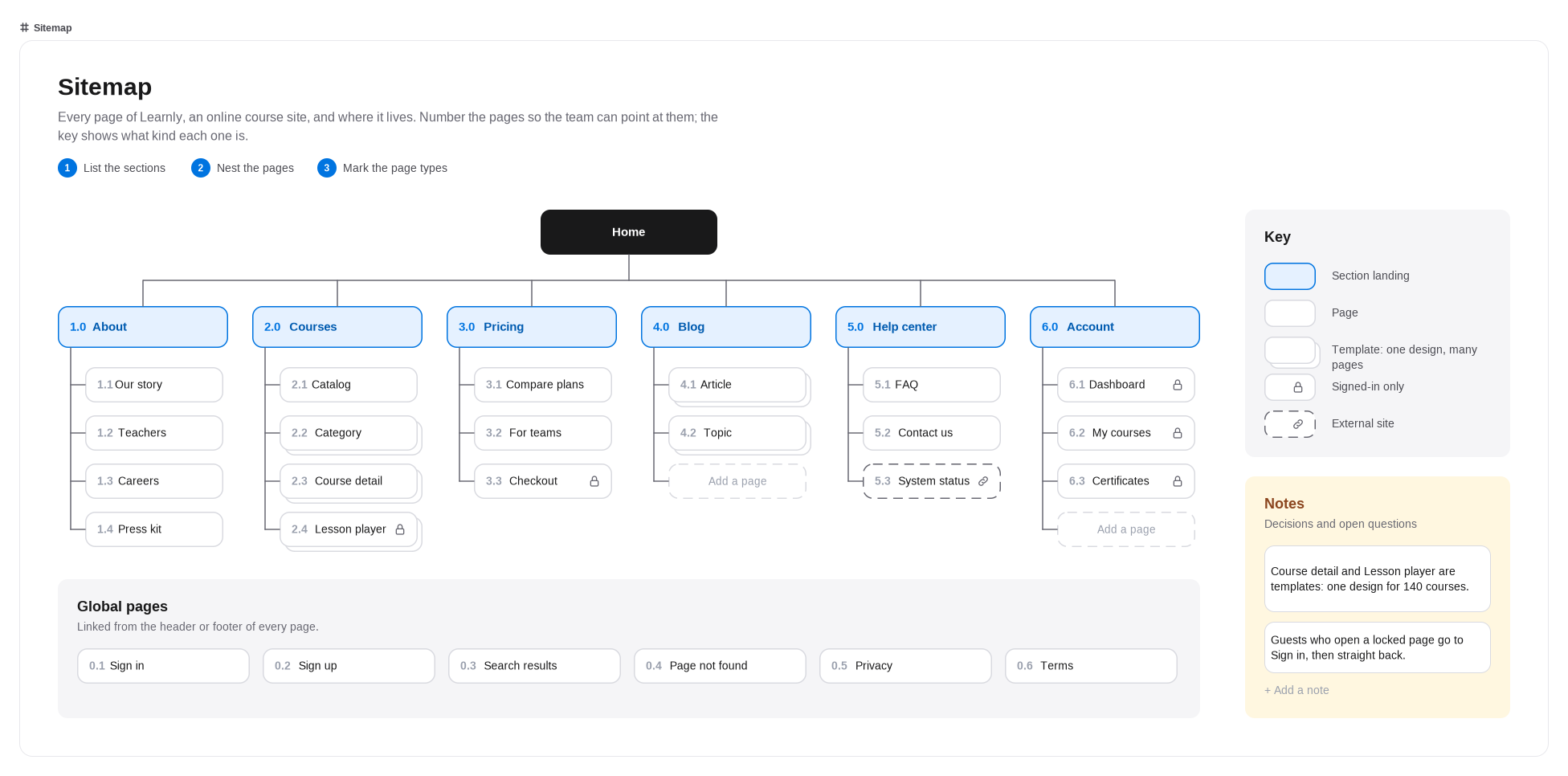
This is a visual sitemap for planning, not the XML file that search engines read. The template maps a course site called Learnly: a Home box, six sections with their pages, a separate band for global pages, a key for page types and a card for notes. Every page has a number, so people can refer to “2.3” in a meeting and mean the same box.
Home, six sections and their pages
The dark box at the top is Home. A line runs from it across to six section landings, each a blue box whose number ends in .0: 1.0 About, 2.0 Courses, 3.0 Pricing, 4.0 Blog, 5.0 Help center, 6.0 Account. These are the items you would expect in the main navigation.
Under each landing hangs a column of its pages. About holds Our story, Teachers, Careers and Press kit. Help center holds FAQ, Contact us and System status. Blog has only Article and Topic, followed by a dashed “Add a page” card. The columns are deliberately uneven. A sitemap should show the site you need, and a section with two pages is a fair result.
Number every page
Each box carries a number in front of its name. The first digit is the section and the second is the page’s place inside it. Courses is 2.0, so its pages are 2.1 Catalog, 2.2 Category, 2.3 Course detail and 2.4 Lesson player. Pricing is 3.0, with 3.1 Compare plans, 3.2 For teams and 3.3 Checkout.
The numbers do more than keep order. They give writers, designers and developers a shared label that survives renaming. If “For teams” becomes “Business” next month, it is still 3.2 in the content plan, the design files and the task list. When you add a page, give it the next free number instead of renumbering its neighbors.
Mark what kind of page each one is
The key on the right defines five kinds of box, and the tree uses all of them.
- Section landing and Page are the two basic kinds.
- Template: one design, many pages is drawn as a stack. Category, Course detail, Lesson player, Article and Topic are stacks, and a note explains why: one design serves 140 courses.
- Signed-in only is a small icon on pages a guest cannot open. The Account pages, Dashboard, My courses and Certificates, all carry it.
- External site marks a page hosted elsewhere, as System status is here.
These marks change the estimate. A template is one design that may carry 140 pages of content, and a signed-in page needs an account system behind it.
Global pages and notes
Some pages belong to no section. The band at the bottom, Global pages, collects them under the line “Linked from the header or footer of every page.” They are numbered from zero: 0.1 Sign in, 0.2 Sign up, 0.3 Search results, 0.4 Page not found, 0.5 Privacy and 0.6 Terms. Listing them here keeps the tree clean and makes sure nobody forgets the error page.
The Notes card holds decisions and open questions that boxes cannot express. One example note sets a behavior: “Guests who open a locked page go to Sign in, then straight back.” Write rules like that next to the map, where the people building the pages will see them.
How to use the sitemap template
- Open it as a new board. Use this template copies the Learnly map to your workspace. The board has 176 elements, more than the 150 a Free board holds, so it needs the Pro or Team plan.
- List the sections. Rename the six blue landings to your main navigation. Delete a column or duplicate one to change the count.
- Nest the pages. Rename the boxes under each landing and fix the numbers as you go.
- Mark the page types. Turn repeated pages into stacks and put the signed-in icon on anything behind a login.
- Fill the global band and the notes. Add the pages every site needs and write down each decision you made on the way.
The guide how to create a website sitemap covers the thinking behind each step.
When a sitemap helps, and when another diagram fits
Draw one at the start of a new site or a redesign, and before moving content from an old site, so you can check that every old page has a new home. It also settles navigation arguments quickly, because everyone can see the whole menu at once.
A sitemap shows where pages live, not how people move through them. For the steps of one task, such as enrolling in a course, draw a user flow. To plan what goes on a single page, use a website wireframe. If you are still unsure how visitors would group your content, run a card sorting session first.
Questions about the Sitemap template
What is the difference between a visual sitemap and an XML sitemap?
A visual sitemap is a planning diagram for people. It shows sections and pages as boxes so a team can agree on structure. An XML sitemap is a file listing a live site’s addresses for search engines to crawl. This template is the first kind.
How deep should a website’s structure go?
Try to keep most pages within three levels of the home page: home, section, page. The example has exactly that depth. When a section needs a fourth level, check whether it should be split into two sections or handled by a template page with filters.
Why does the sitemap template need a paid plan?
Size. The example site has 176 elements once every box, number and line is counted, and a board on the Free plan holds up to 150. The Pro and Team plans allow larger boards. If you delete a section after opening it, the map gets much smaller.
Should the sitemap include pages that need a login?
Yes. Account pages, checkout and member content take design and development time like any other page. Include them and mark them, as the example does with its signed-in icon, so that the estimate and the navigation both account for them.